Installation
Install the app and connect your GA4 account
Installing from the App Store
- Visit the Pasilobus Google Analytics app listing on the Shopify App Store
- Click Add app to begin the installation
- Follow the prompts to complete installation
Getting Your GA4 Credentials
Before the app can send data to Google Analytics, you need two pieces of information from your GA4 account:
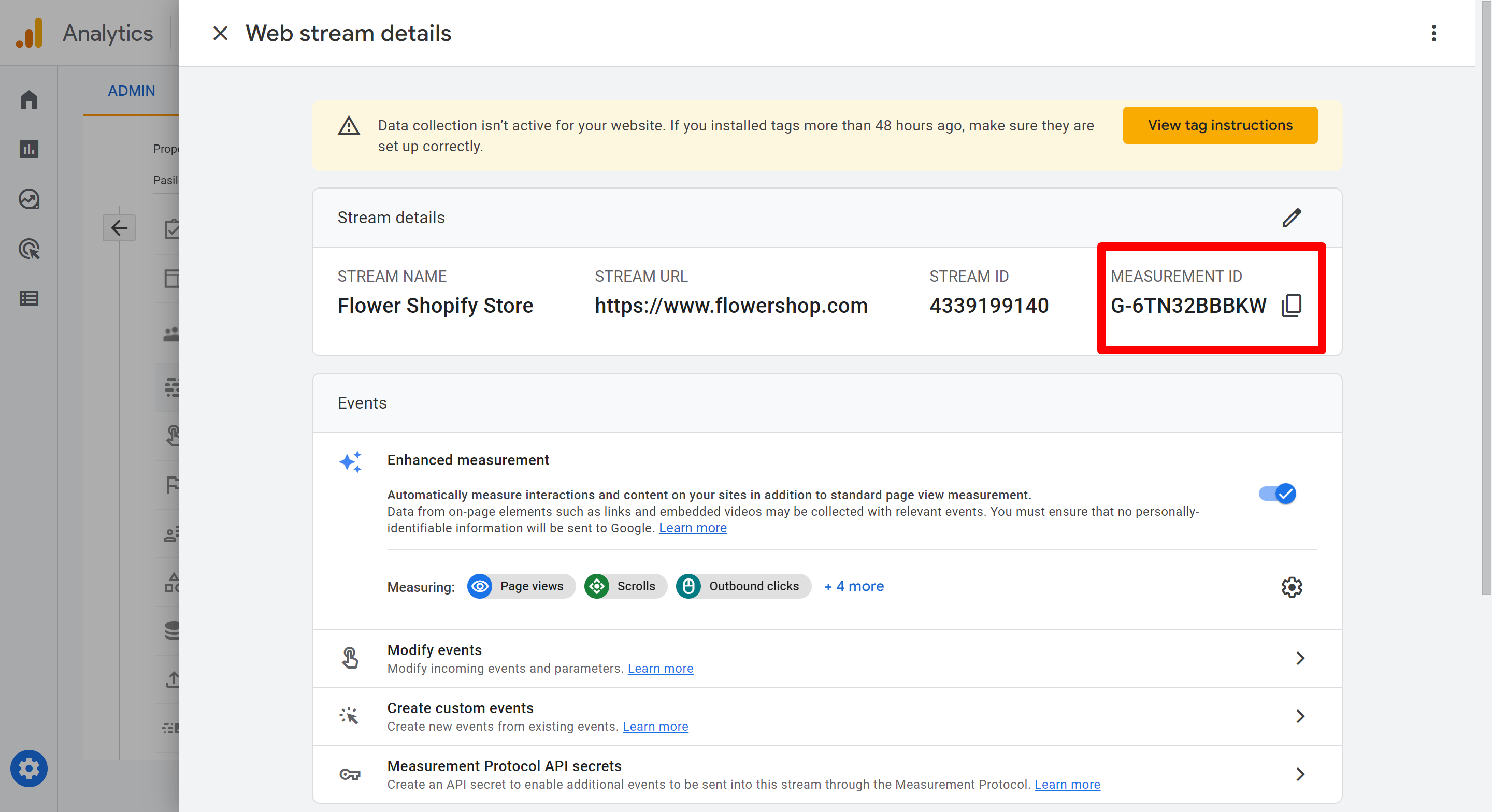
Finding Your Measurement ID
- Go to analytics.google.com
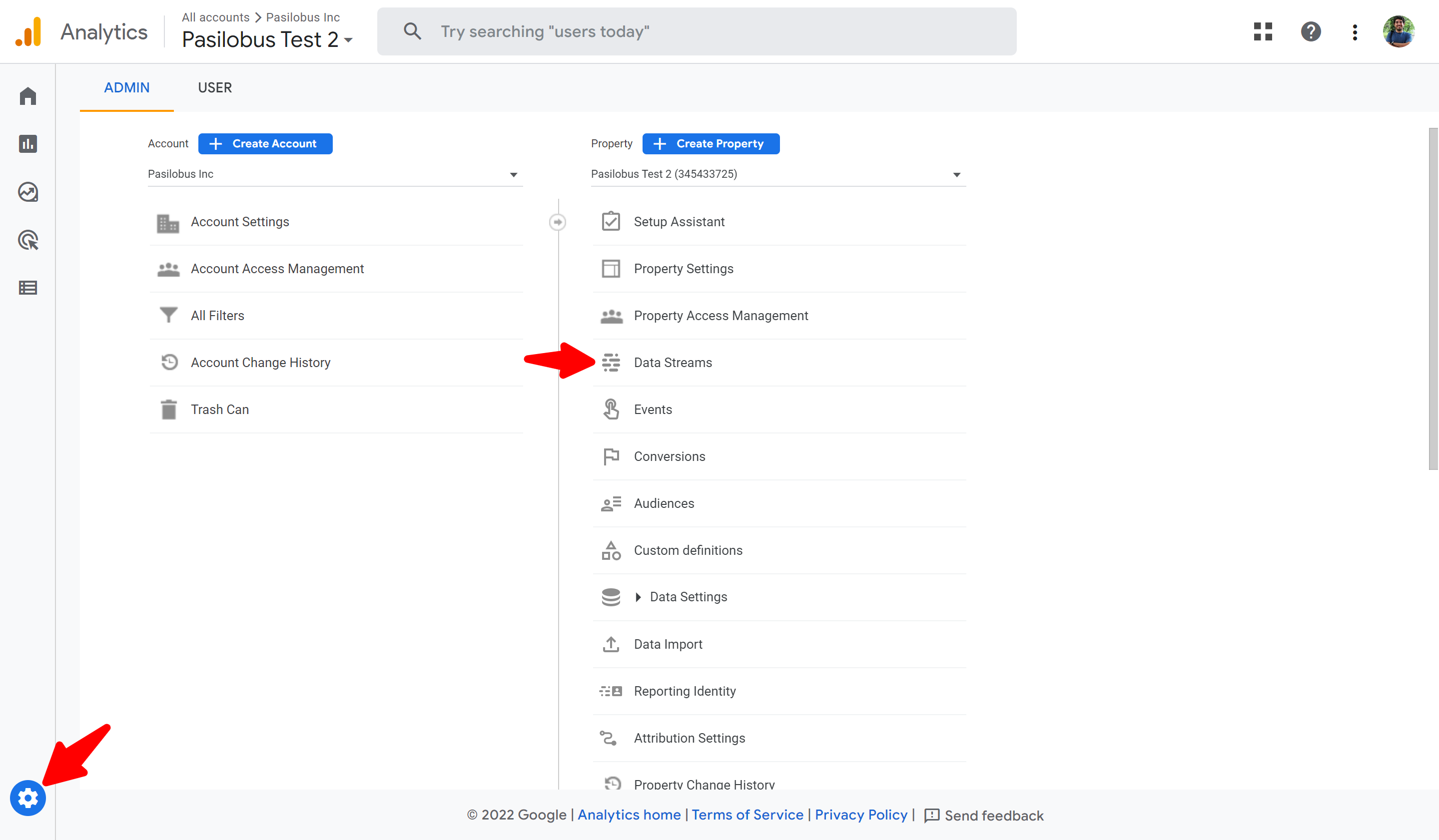
- Click the Admin gear icon in the bottom-left corner
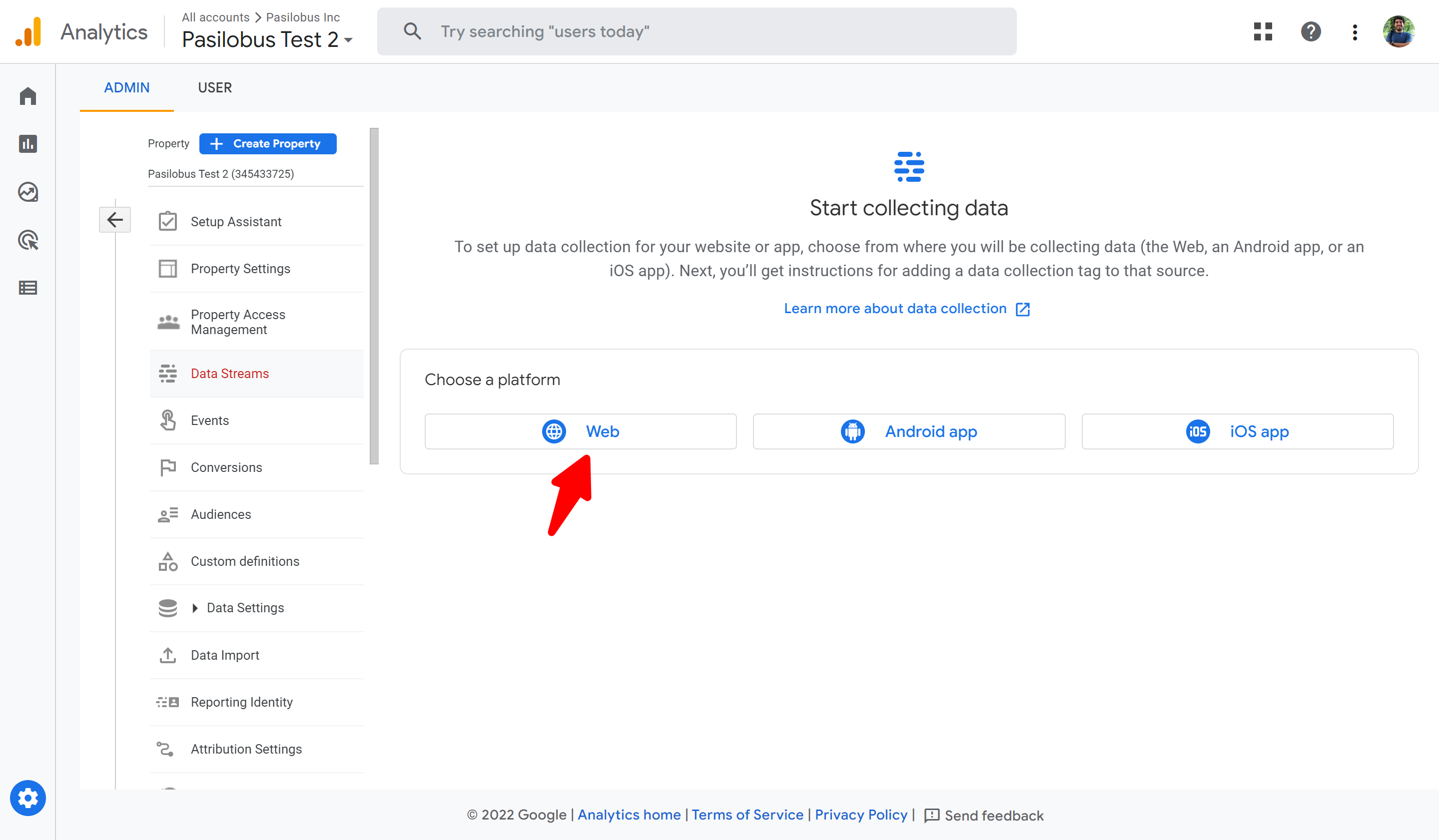
- In the Property column, click Data Streams
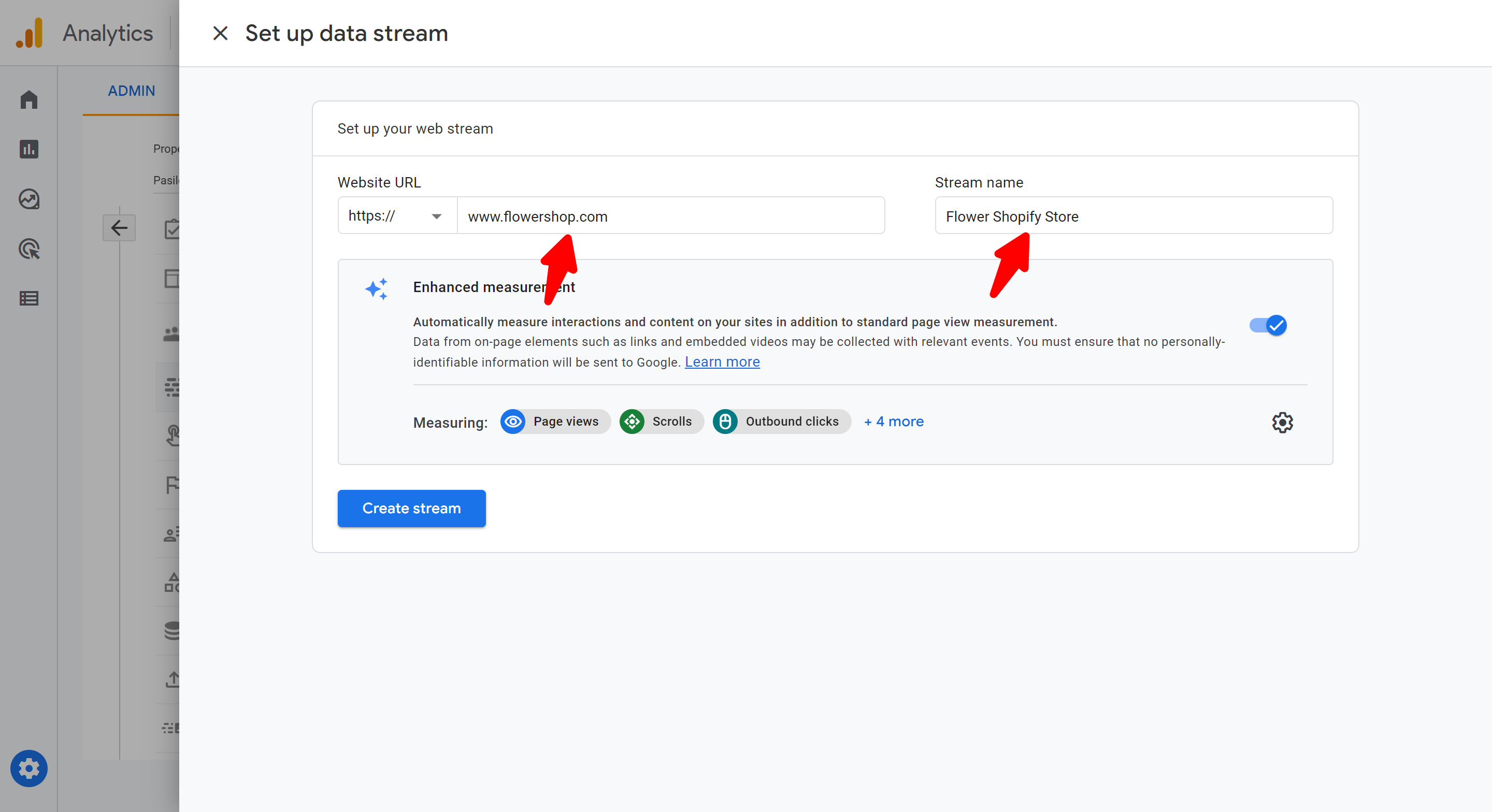
- Select your web data stream
- Your Measurement ID (starts with G-) is shown at the top—copy it
Creating an API Secret
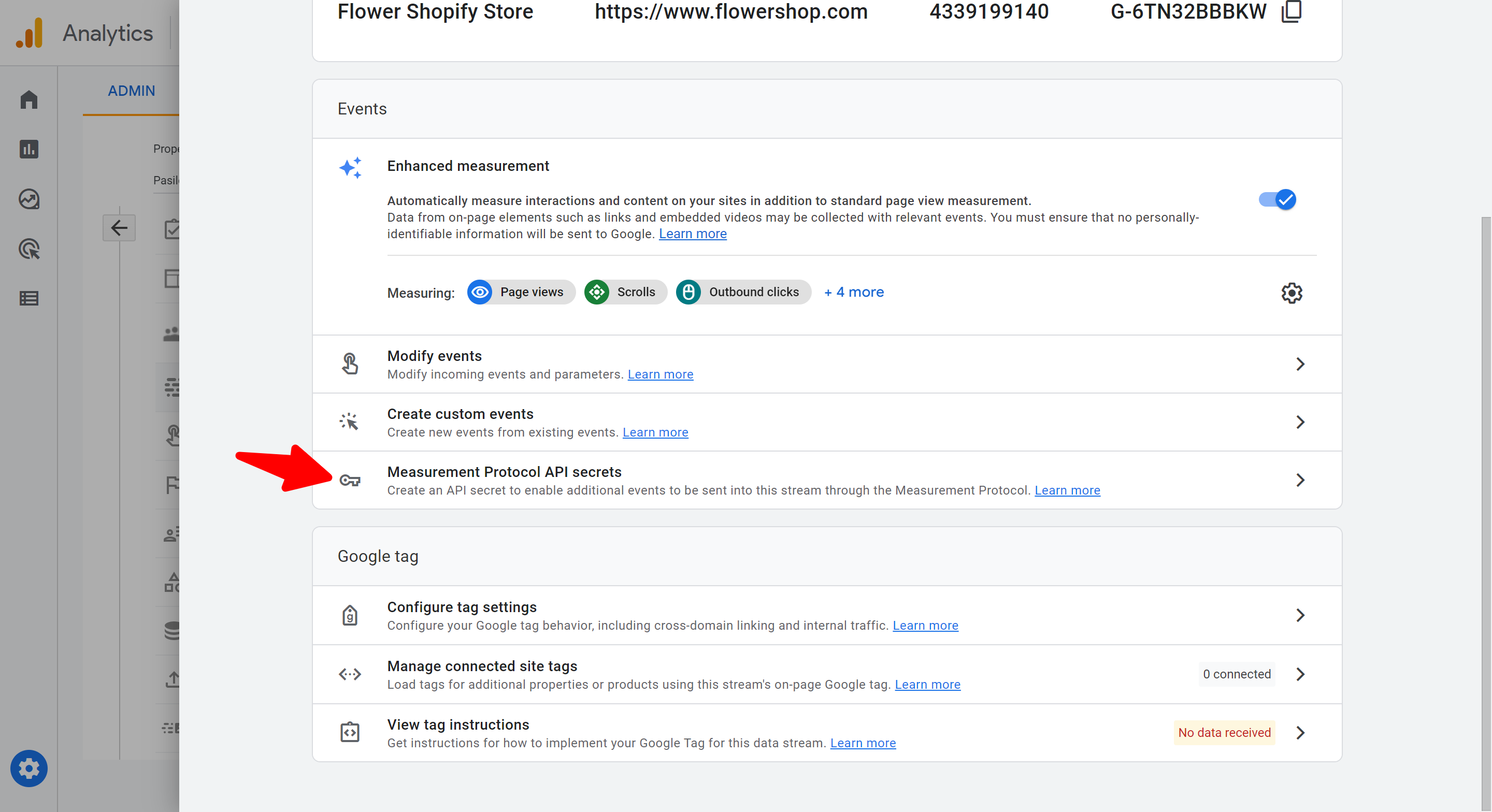
- In the same Data Stream details page, scroll down
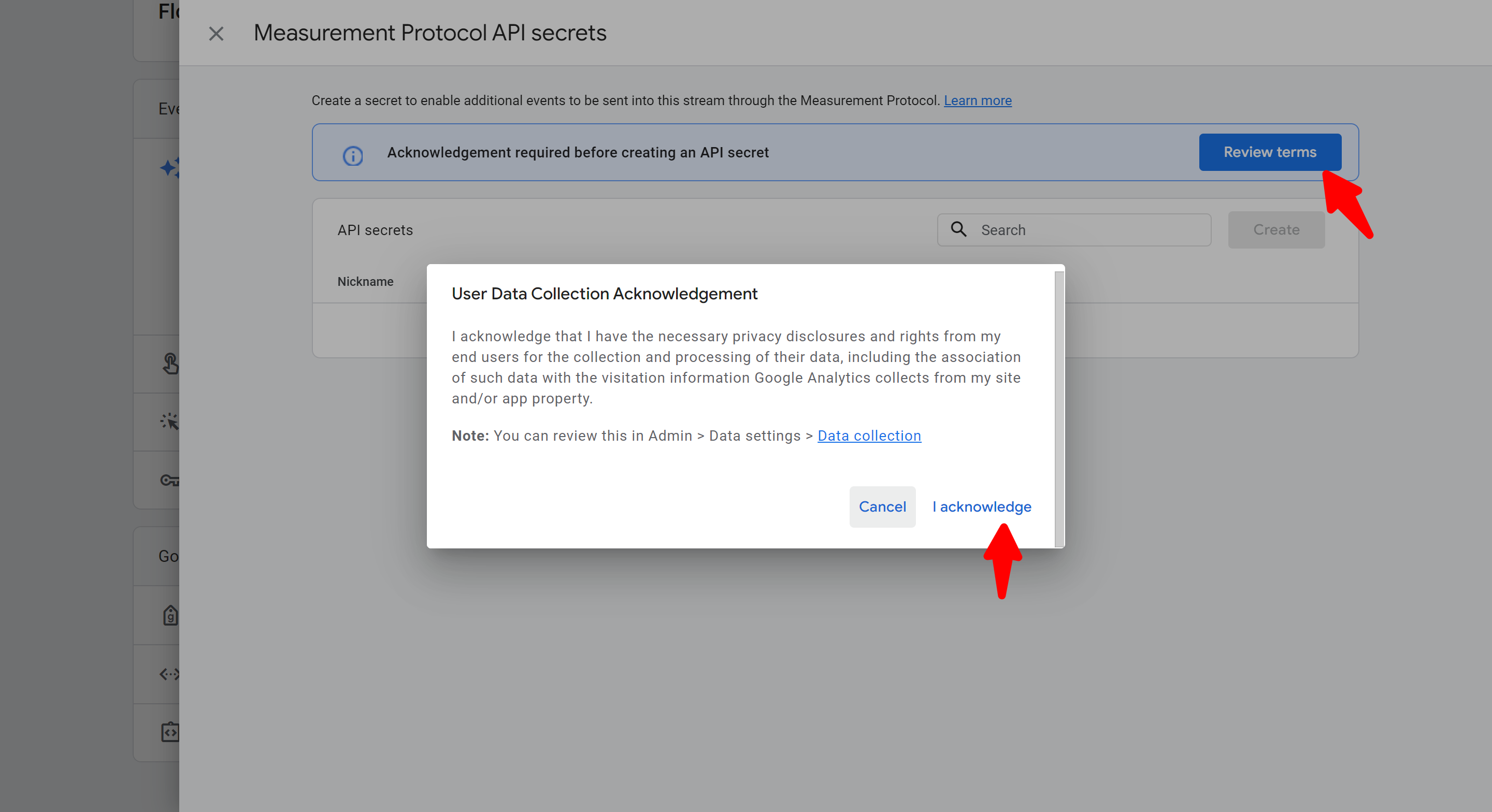
- Click Measurement Protocol API secrets
- Click Create to generate a new secret
- Give it a name (e.g., "Shopify Pasilobus Google Analytics")
- Copy the Secret value
Entering Credentials in the App
- Open the Pasilobus Google Analytics app in your Shopify admin
- Enter your Measurement ID in the first field
- Enter your API Secret in the second field
- Click Save
Once saved, the API Secret is hidden and never shown again. To change it, paste a new secret into the field and save. Leaving the field empty keeps the secret you already saved.
Verifying Tracking is Working
To confirm everything is set up correctly:
- Visit your store and browse a few pages
- Add a product to cart
- Wait 24-48 hours for data to appear in GA4 reports
For real-time verification, use GA4's DebugView:
- In Google Analytics, go to Admin > DebugView
- Browse your store in a separate tab
- Watch for events appearing in real-time
If events aren't showing, check the Events Not Showing troubleshooting guide.
Enabling the App Embed
After saving your credentials, enable the app on your theme:
- Select your theme from the dropdown
- Click Open Theme Editor
- In the theme editor, find "Pasilobus Google Analytics" in the App Embeds section
- Toggle it On and click Save