Putting products on sale
Take a percentage or amount off as a cart discount, or as real sale prices that go back when the sale ends
On this page
A sale takes a percentage or an amount off your whole store, a collection or chosen products. You choose how shoppers see it: as a discount that comes off in the cart, or as real sale prices for a few days. Real sale prices show everywhere, with the old price crossed out: on product pages, in collections, in the cart, and in Google Shopping and other channels that read your prices. When the sale ends, every price goes back exactly as it was.
 Putting products on sale1:07
Create a sale
- Click Add discount and choose Put things on sale.
- Under Discount, choose % off or an amount off, and enter the value.
- Under Applies to, choose All products, Specific products, Specific variants or Collections. With all products or collections you can also exclude some collections or products.
- Under How shoppers see the sale, choose one of the two options below.
- Click Create discount.
Discount in the cart or real sale prices
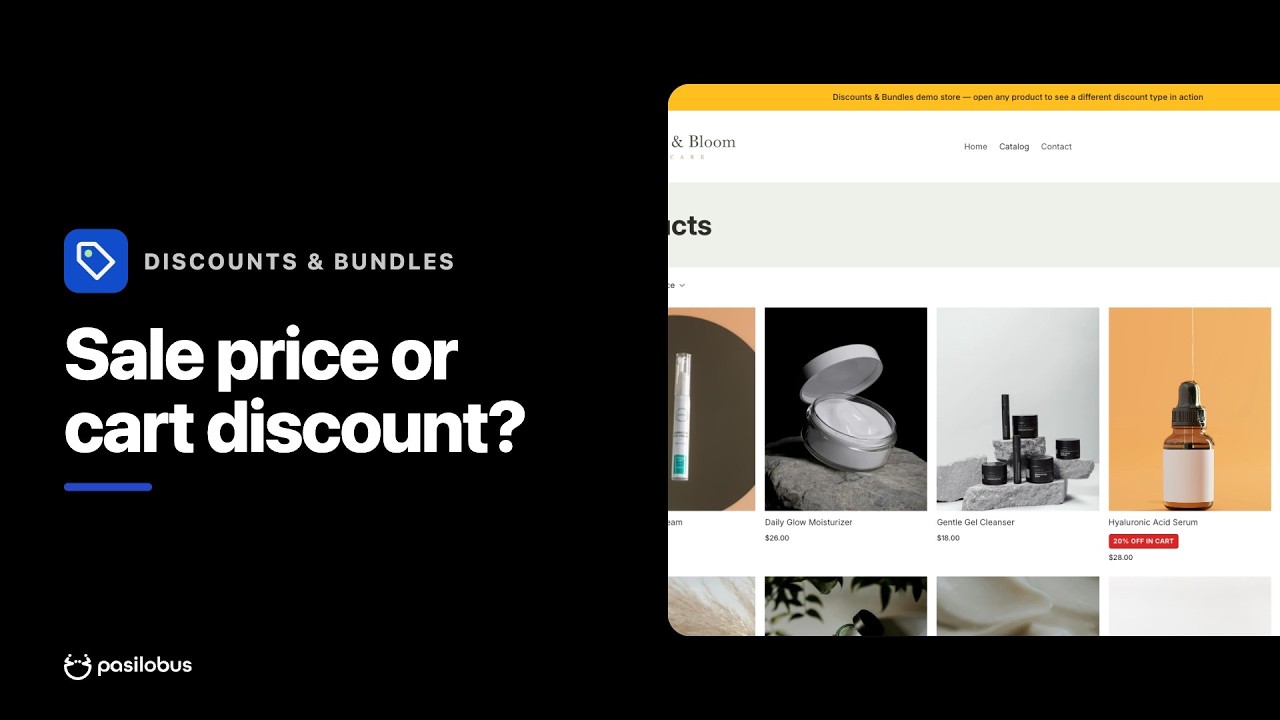 Choosing sale prices or a discount in the cart1:40
- Discount at checkout, with a sale badge - Your product prices stay the same. The discount comes off in the cart and at checkout, and your products show a sale badge. The offer runs for as long as it is active, or on the dates under When it runs.
- Change product prices during the sale - Your products get a real sale price between the start and end dates you set in this card, so your theme shows its own Sale label everywhere. The card says how many products will change and the date prices go back.
With the second option the app runs the offer in a sale event of its own, which you'll find under Sale events. Switching the offer back to Discount at checkout, with a sale badge puts the prices back.
Sale prices in a sale event
A sale event, such as Black Friday, can change prices for several offers at once.
- Go to Sale events and open your event, or click Create sale event.
- Under Offers in this event, click the offers to add. Only offers with one discount from the first item can change prices: a Put things on sale offer, or a Buy more, save more offer with a single tier from 1 item, for example 20% off or $5 off each.
- Under Sale prices, tick Change product prices during the sale.
- Click Save.
The Sale prices card on the event page shows how many products will change price and about how long it takes. Only one sale event can change prices at a time.
What happens at the start
- Within a minute of the start, the app lowers the price of every product the offer covers. The old price becomes the compare-at price, so your theme shows it crossed out with its own Sale label. If a product already had a higher compare-at price, that one stays.
- The offer stops applying at checkout while prices are lowered, so nobody gets the discount twice.
- Prices change product by product. In a large store this takes a few minutes, and products not yet changed sell at their full price until their turn. To have everything ready at the start, tick Apply prices before the start so everything is ready on the event. The app then starts early, by about as long as it takes, and shoppers may see sale prices a few minutes before the sale begins.
- Products you add to a sale collection during the sale, and new variants of products on sale, get the sale price within a few minutes. A product you take out of the collection gets its full price back within a few minutes, without waiting for the end.
What happens at the end
- Within a minute of the end, every price and compare-at price goes back exactly as it was before the sale. Then the offer applies at checkout again, as usual.
- If you change a product's price yourself during the sale, the app keeps your new price and does not overwrite it. The event page lists those products.
- To end the sale prices early, click Restore prices and stop price changes on the event page. This also unticks Change product prices during the sale. Switching the event off, unticking the box or deleting the event also restores prices.
Other offers during the sale
- A lightning deal on a product on sale is worked out from the original price, not added on top of the sale price. For example, a 35% deal on a $38 product makes it $24.70 even while the sale price is $30.40. If the deal is smaller than the sale, the sale price stands.
- Volume discounts work the same way: they apply only when they beat the sale price, counted from the original price.
- BOGO, mix and match and bundle offers do not apply to products on sale.
- Offers set to Can combine with other offers are the exception: they apply on top of the sale price, as they would on any price.
Good to know
- Offers for customer tags or certain countries, and offers that run only on certain days or hours, can't change prices. They stay as a discount at checkout.
- Markets with a percentage price adjustment follow the new prices automatically. If a market sets fixed prices for some products, those products keep their fixed price in that market, without the sale discount. The event page names those markets before you start.
- Changing the offer's discount during the sale does not change prices already lowered. Untick Change product prices during the sale, save, then tick it again to apply the new discount.
Thanks, that helps us improve this guide.