Offering free shipping
Free shipping once the cart reaches an amount or a number of items, alongside your other offers
On this page
A free shipping offer makes shipping free at checkout once the cart qualifies, for example "Free shipping over $50" or "Free shipping on 3 or more items". It's one of the simplest ways to raise your order value: shoppers add a little more to reach the threshold, and the cart tells them how far they have to go.
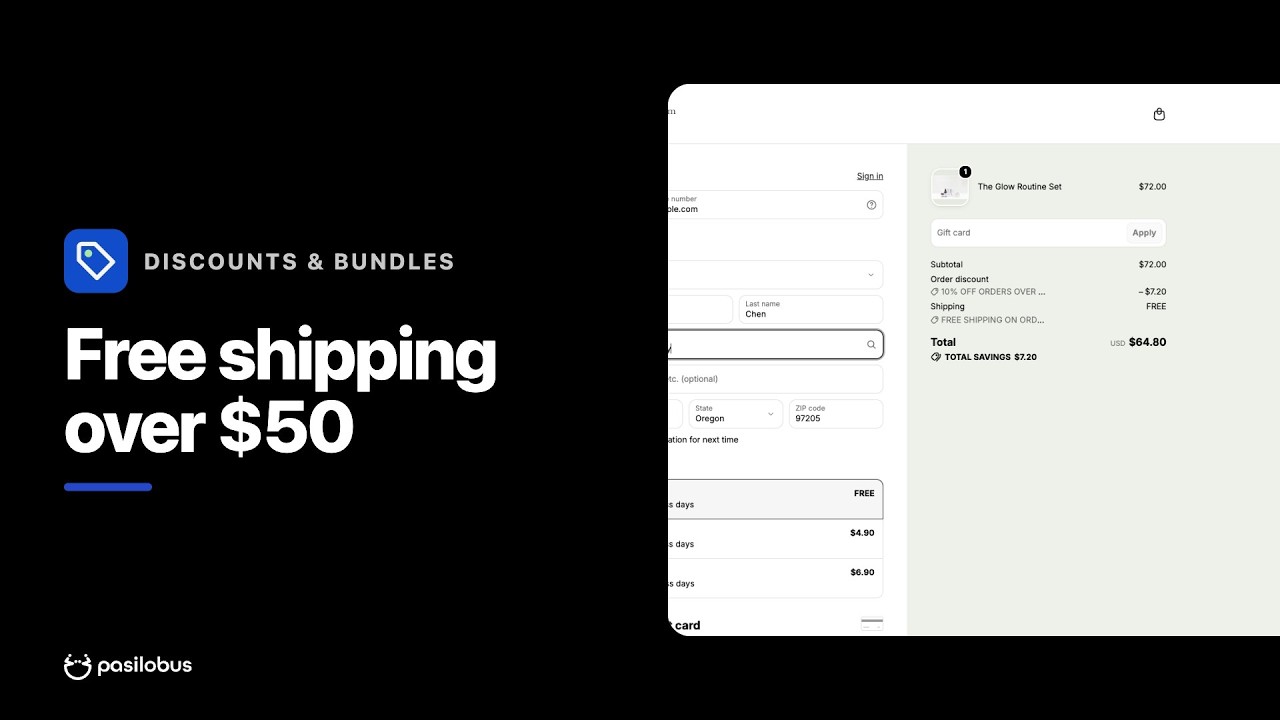 Offering free shipping1:11
Create a free shipping offer
- Click Add discount and choose Free shipping.
- Under Free shipping when, choose The cart reaches an amount or The cart has a number of items.
- Enter the Minimum amount or the Minimum number of items.
- Leave Make all shipping rates free off to make only the cheapest shipping rate free, or turn it on to make every rate free, express included.
- Under Applies to, leave Order to count the whole cart, or choose Specific products, Specific variants or Collections to count only those.
- Click Create discount.
What counts toward the minimum
- Minimum amount counts the full price, before discounts, of the products the offer applies to. A shopper who gets 20% off a $60 cart still reaches a $50 minimum.
- Minimum number of items counts the items the offer applies to. By default each product counts separately (Count each product separately), so the shopper needs that many of one product. To count every item in the cart together, for example any 3 items, choose Combine quantities across all matching products under More options › How quantities count.
- Free gifts the app adds to the cart don't count toward either.
- For shoppers paying in another currency, the amount is converted at checkout.
What shoppers see
- At checkout, the shipping rate shows as free, with the offer's title. The title is Free shipping unless you change it under More options › Checkout title.
- With Make all shipping rates free off, the cheapest shipping rate is free and the others keep their price. Local pickup isn't counted as the cheapest rate.
- In the cart, shoppers who haven't qualified yet see messages like "Spend $12.00 more for free shipping" or "Add 2 more for free shipping". They show in slide-out carts and on the cart page when Offer nudges in the cart is on under Settings › Storefront features, and in the Cart Nudge Messages block if you add it to your theme.
How it combines with other offers
- Free shipping always applies together with your other Discounts & Bundles offers, whatever their combining setting. A shopper can get "Buy 3, save 15%" and free shipping on the same order.
- It does not combine with other shipping discounts. If your store also has its own free shipping discount in Shopify, the shopper gets only one of them.
- To give free shipping as part of a volume discount instead, open a Buy more, save more offer and tick Free shipping on the tier that should earn it, for example "Buy 5, save 20% and ship free".
Good to know
- Free shipping offers are on every plan. Each active one counts toward your plan's active-offer limit.
- More options also lets you limit the offer to certain countries or keep it from B2B buyers, or to customers with certain tags on the Ultra plan. When it runs schedules it, from the Pro plan.
Thanks, that helps us improve this guide.