See agents at work (demo store)
A step-by-step tour on a demo store - creating an agent, an SEO title and a discount code from ask to approve and undo, Pasilo, a scheduled task and memory
On this page
This is a demo. Every screenshot below comes from Copper and Kiln Demo, a test store we made to show agents at work. The store, its products, orders and discount codes are not real, and nothing here was sold to anyone.
Copper's team has two agents: Sage for sales and offers, and Juno for store upkeep and SEO. Here they take on real tasks, from asking to approving and undoing.
Creating an agent
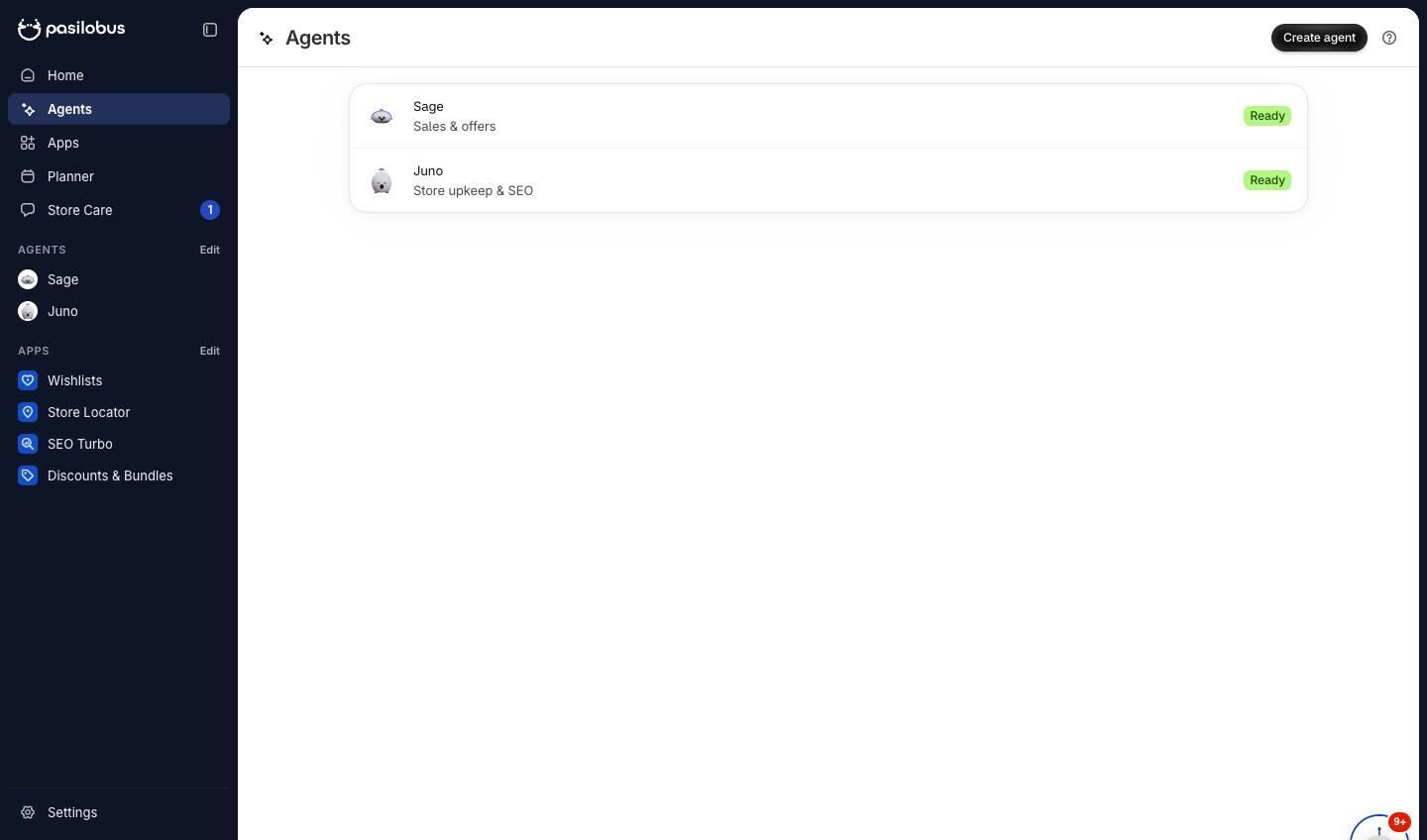
Agents lists the store's agents. Create agent adds another.
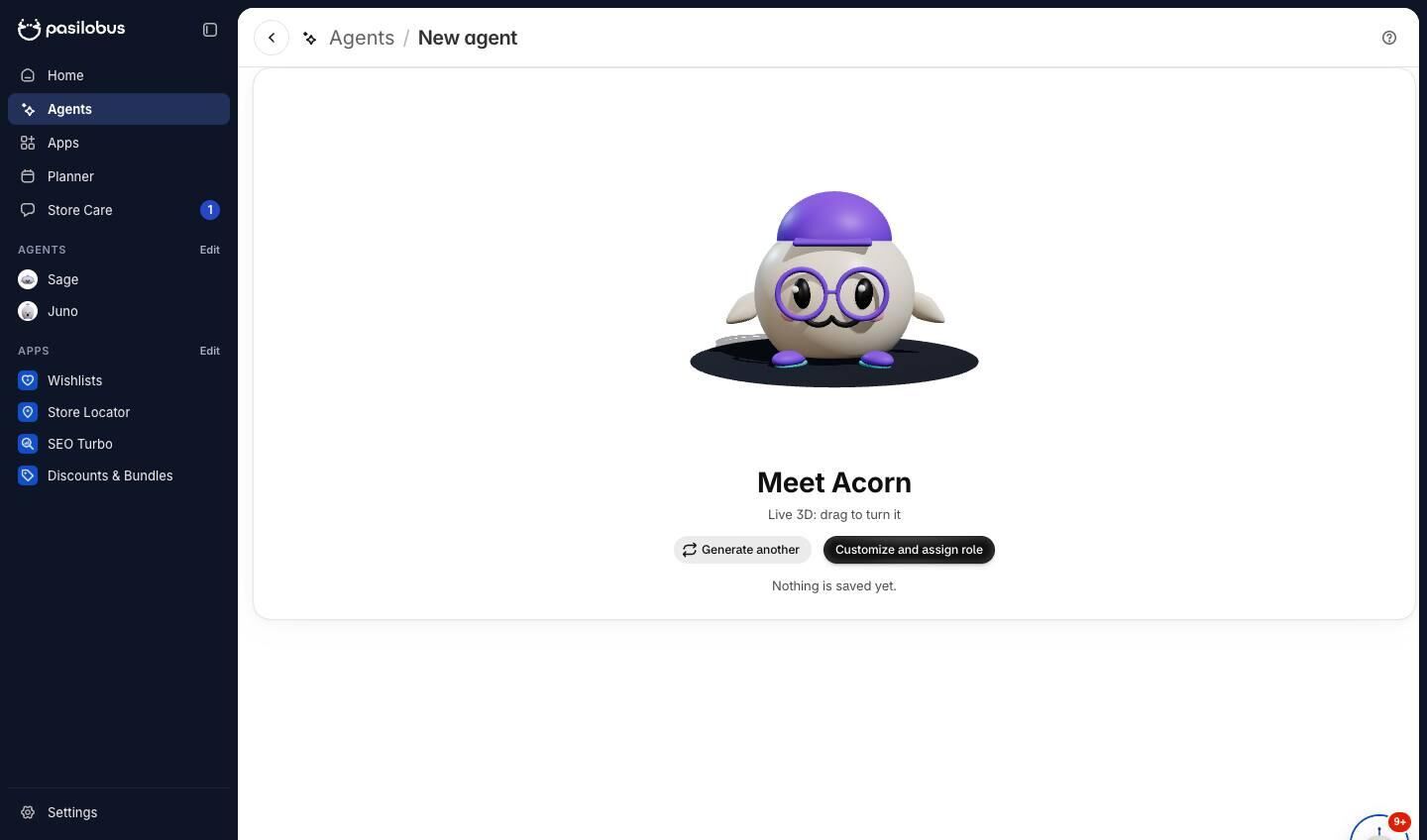
Create agent rolls a name and a 3D look. Nothing is saved yet.
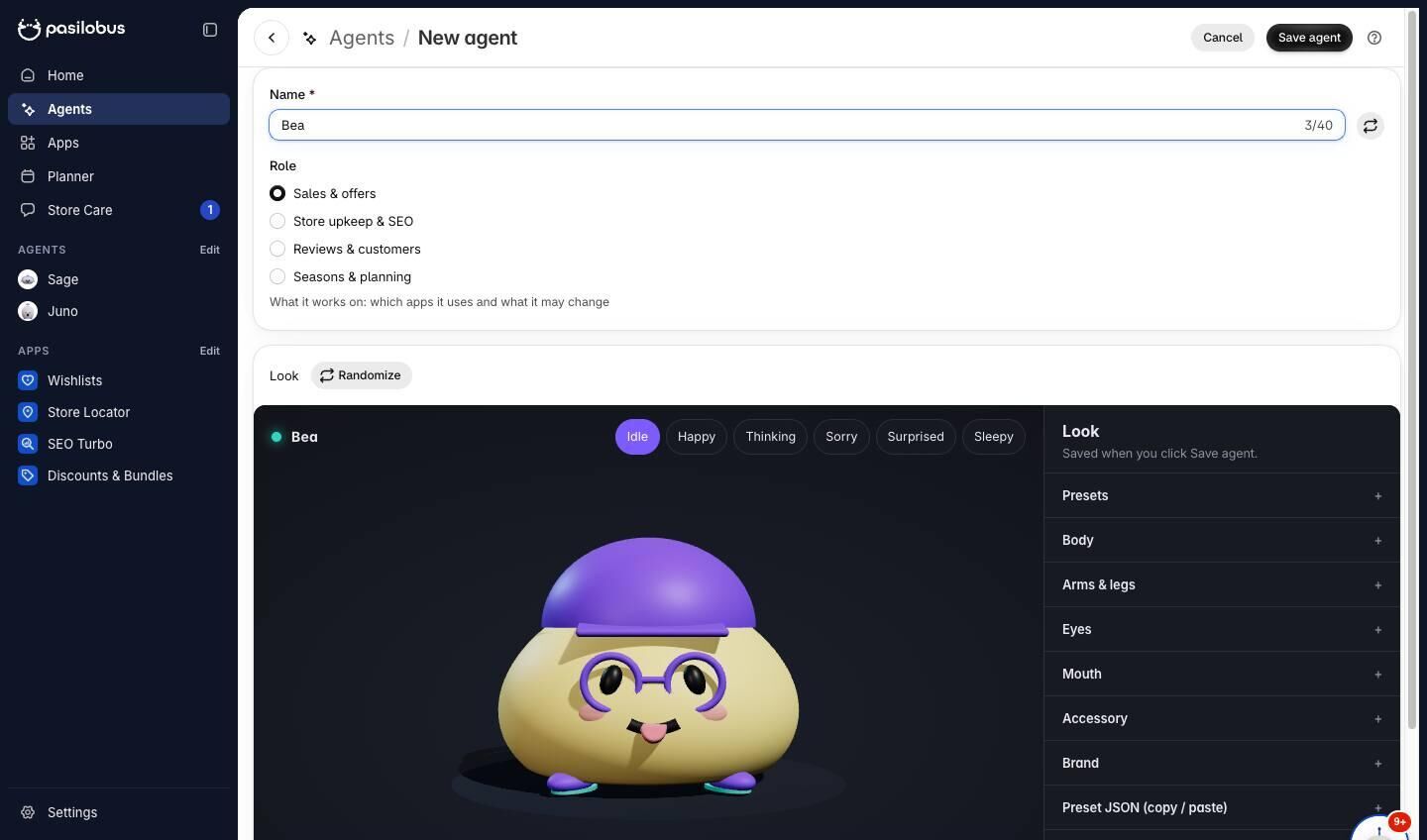
Customize sets its name, look and role. The role decides which apps it works with and what it may change.
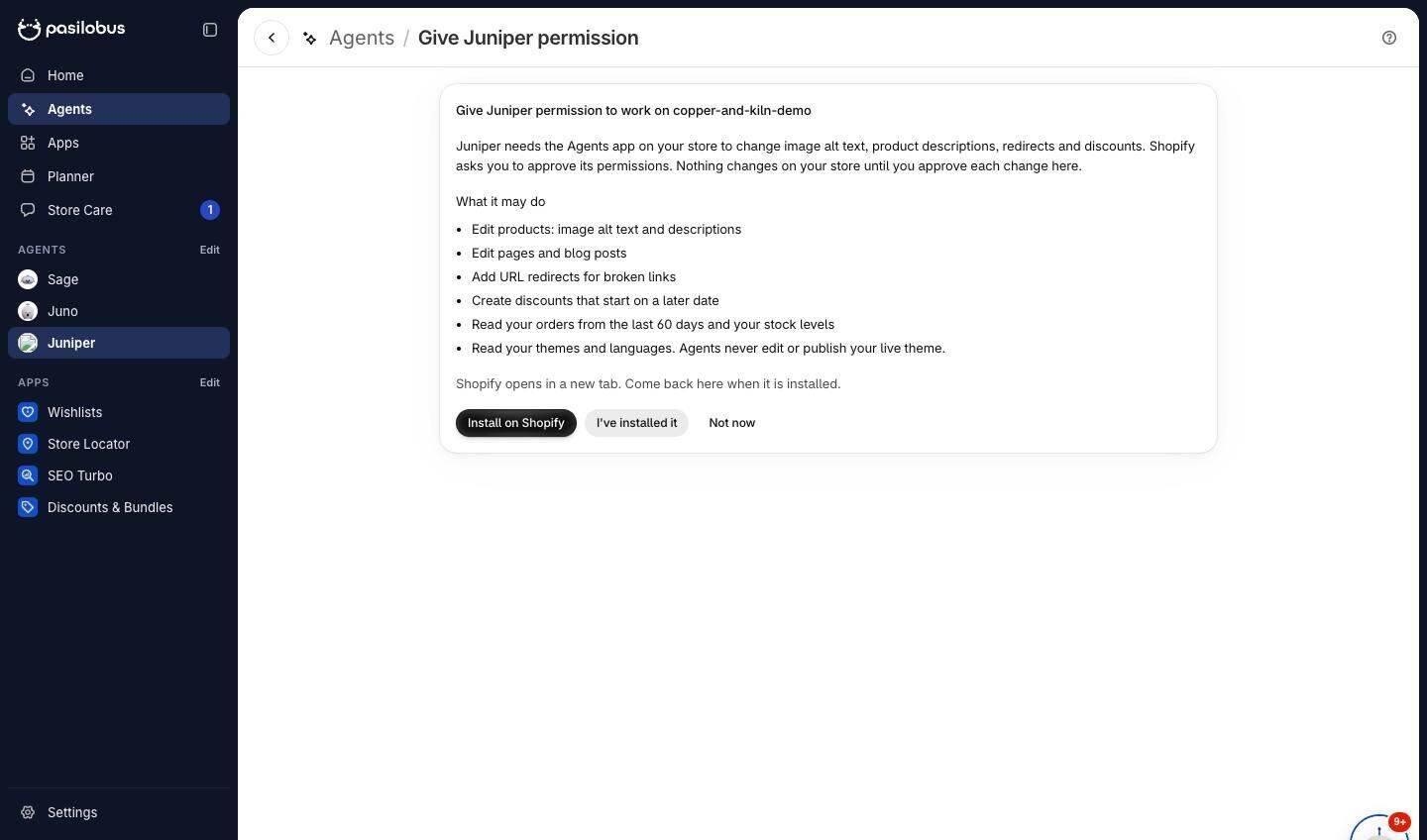
When the store doesn't have the Agents app yet, saving the agent opens this step. Install on Shopify opens Shopify's own approval screen in a new tab.
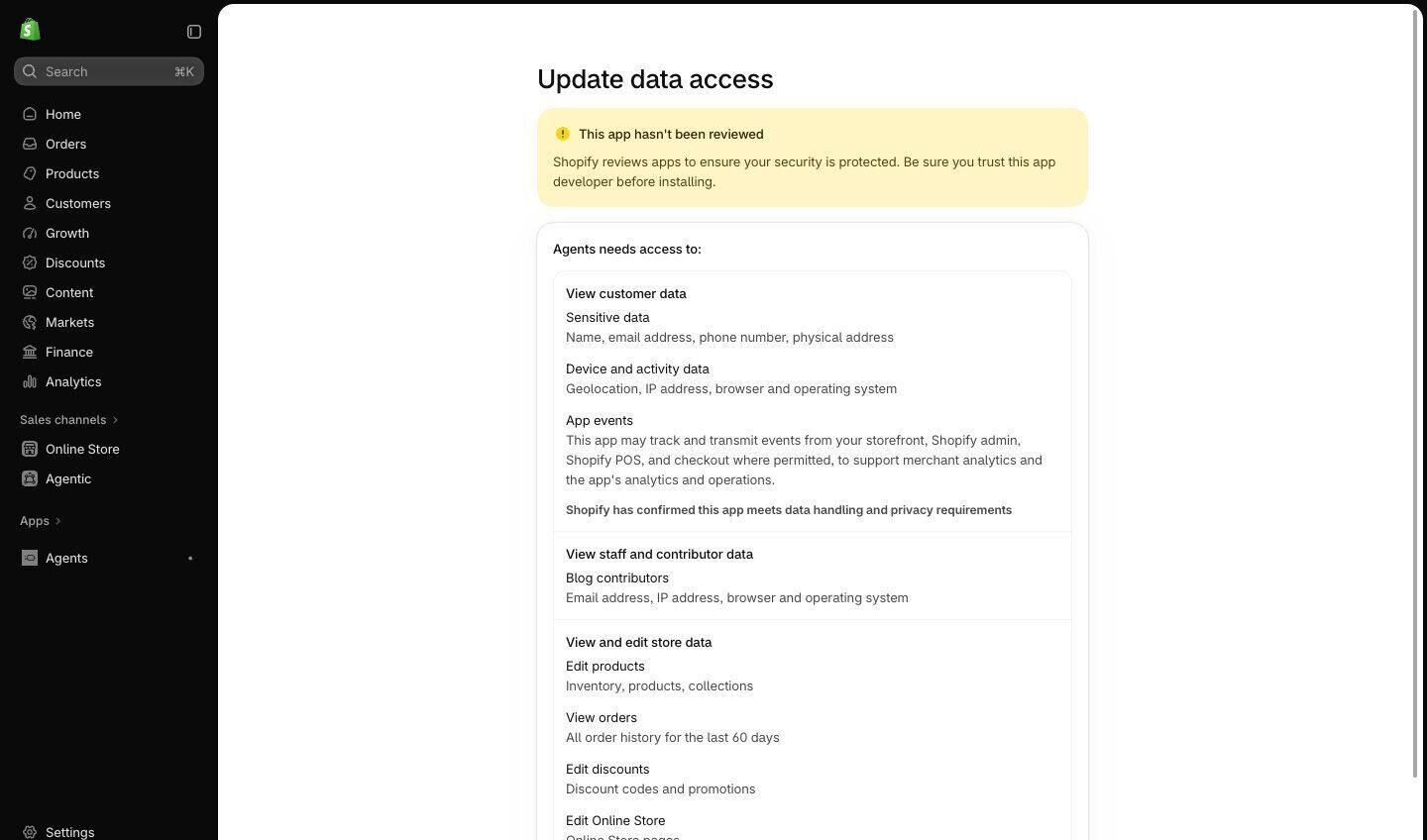
Shopify lists the Agents app's permissions, and the merchant approves them once.
Juno rewrites an SEO title
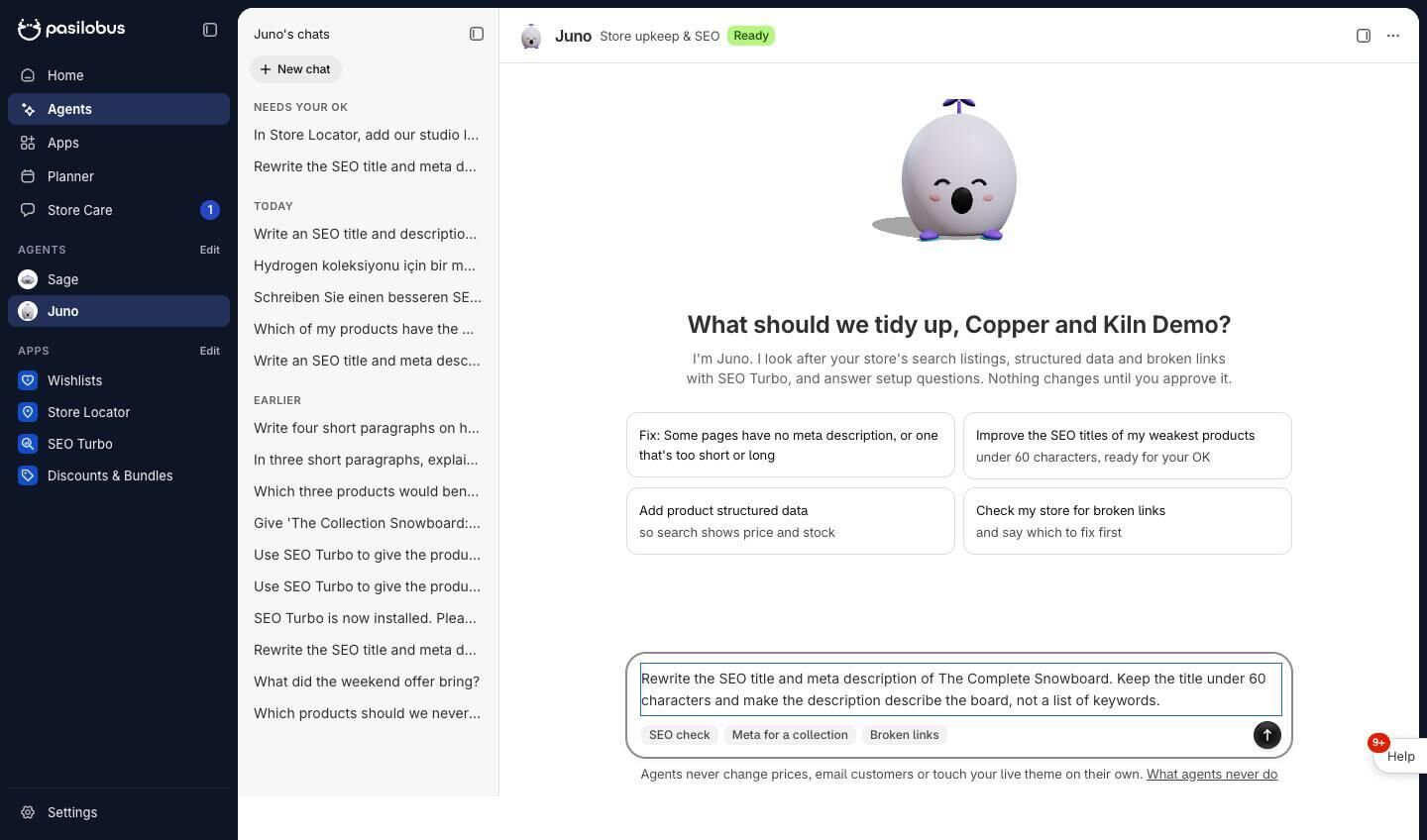
Juno gets a task in plain words: rewrite one product's SEO title and meta description.
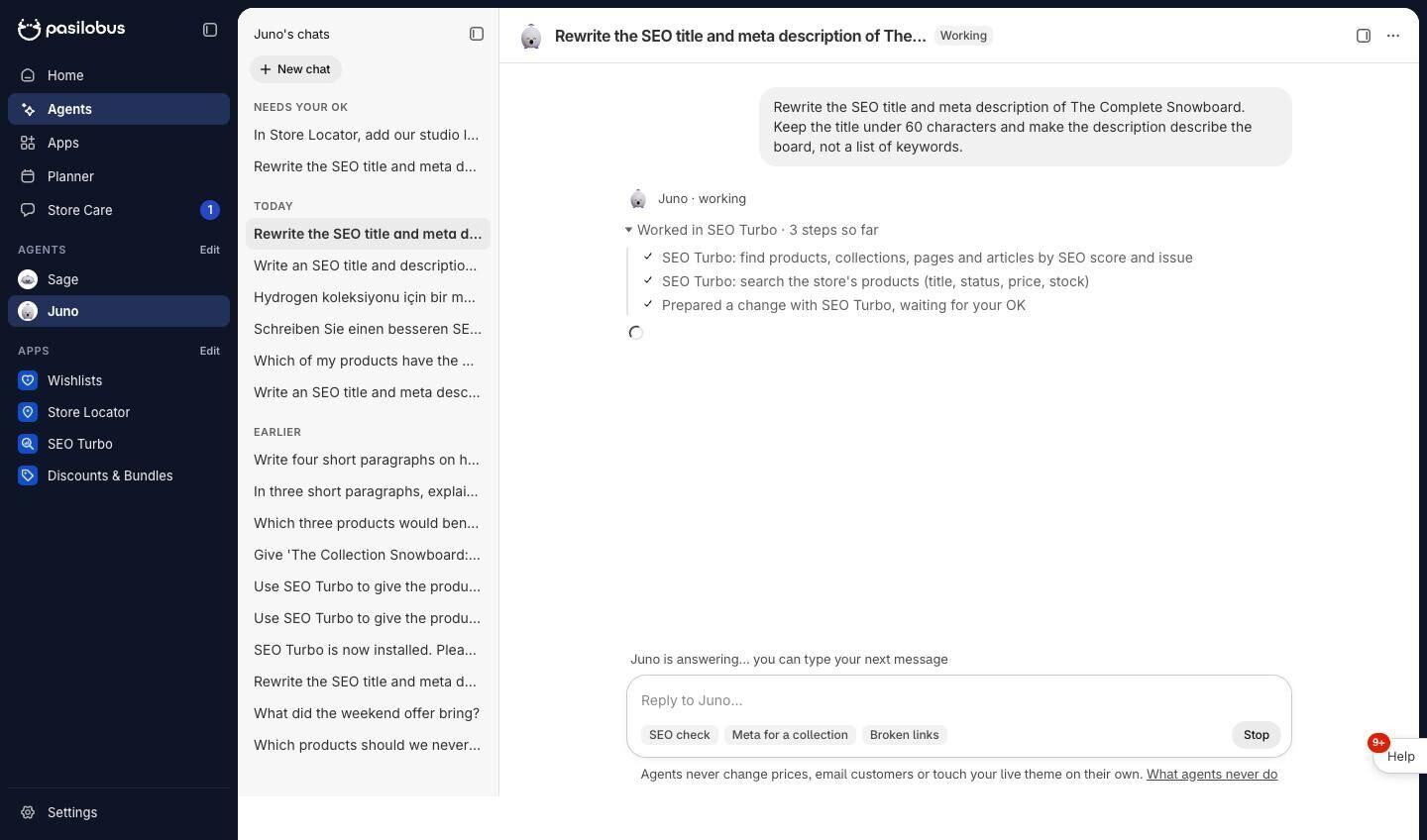
While Juno works, each step shows. Here it looks the product up in SEO Turbo before it writes anything.
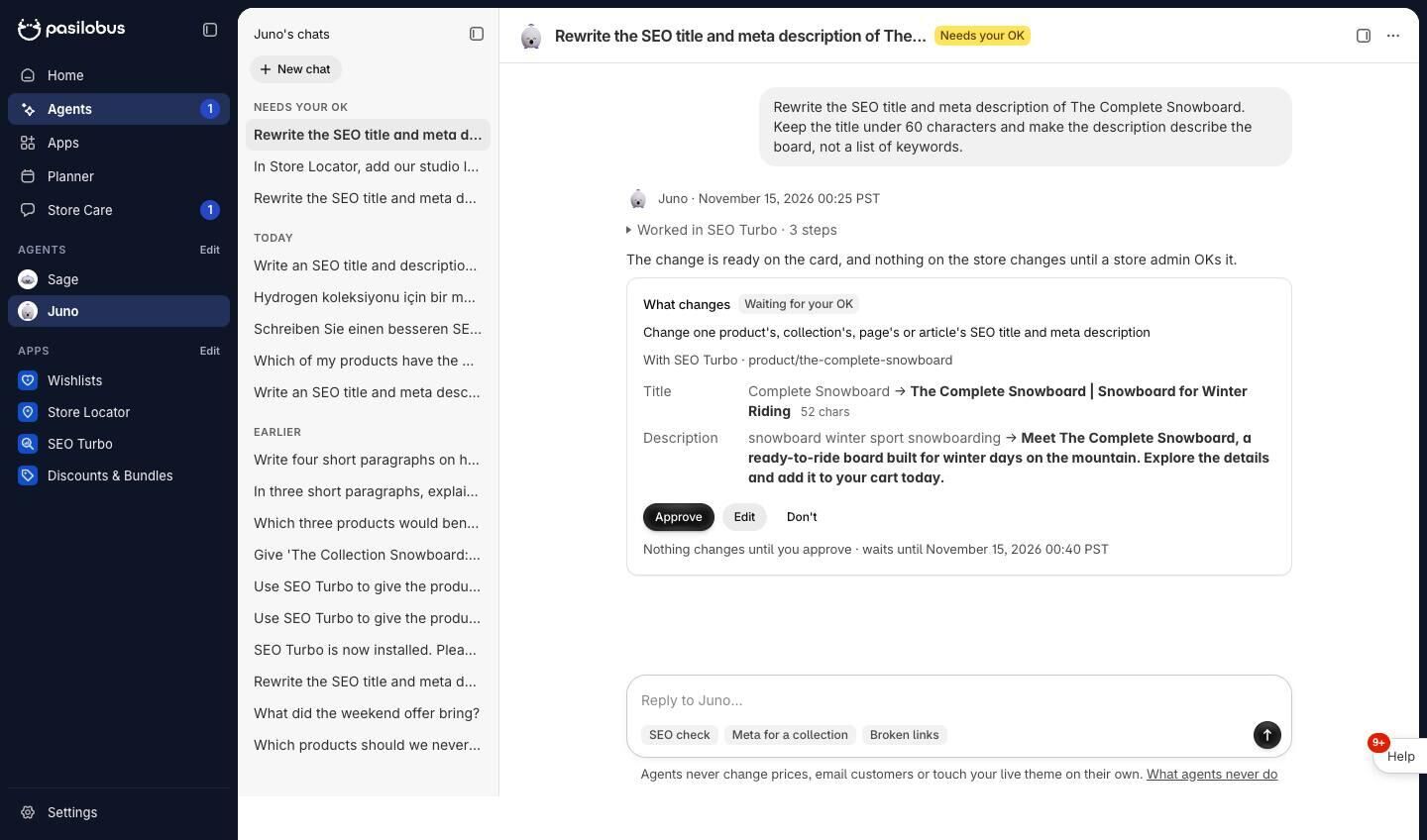
Juno's answer ends in a card with the SEO title and description now, and what it proposes. Nothing changes until an admin approves.
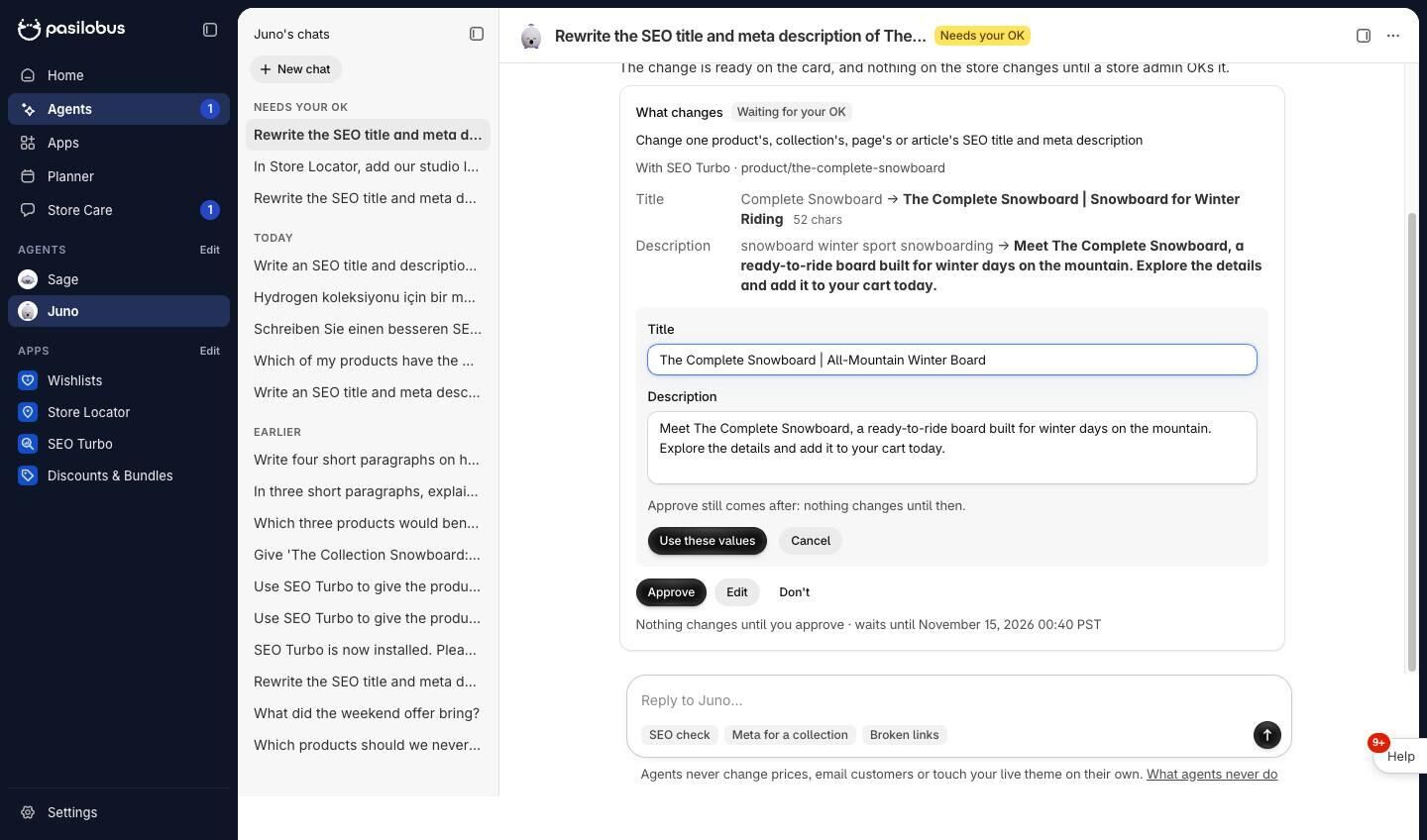
Edit opens the values in the card. Here the title is changed by hand, and Approve still comes after.
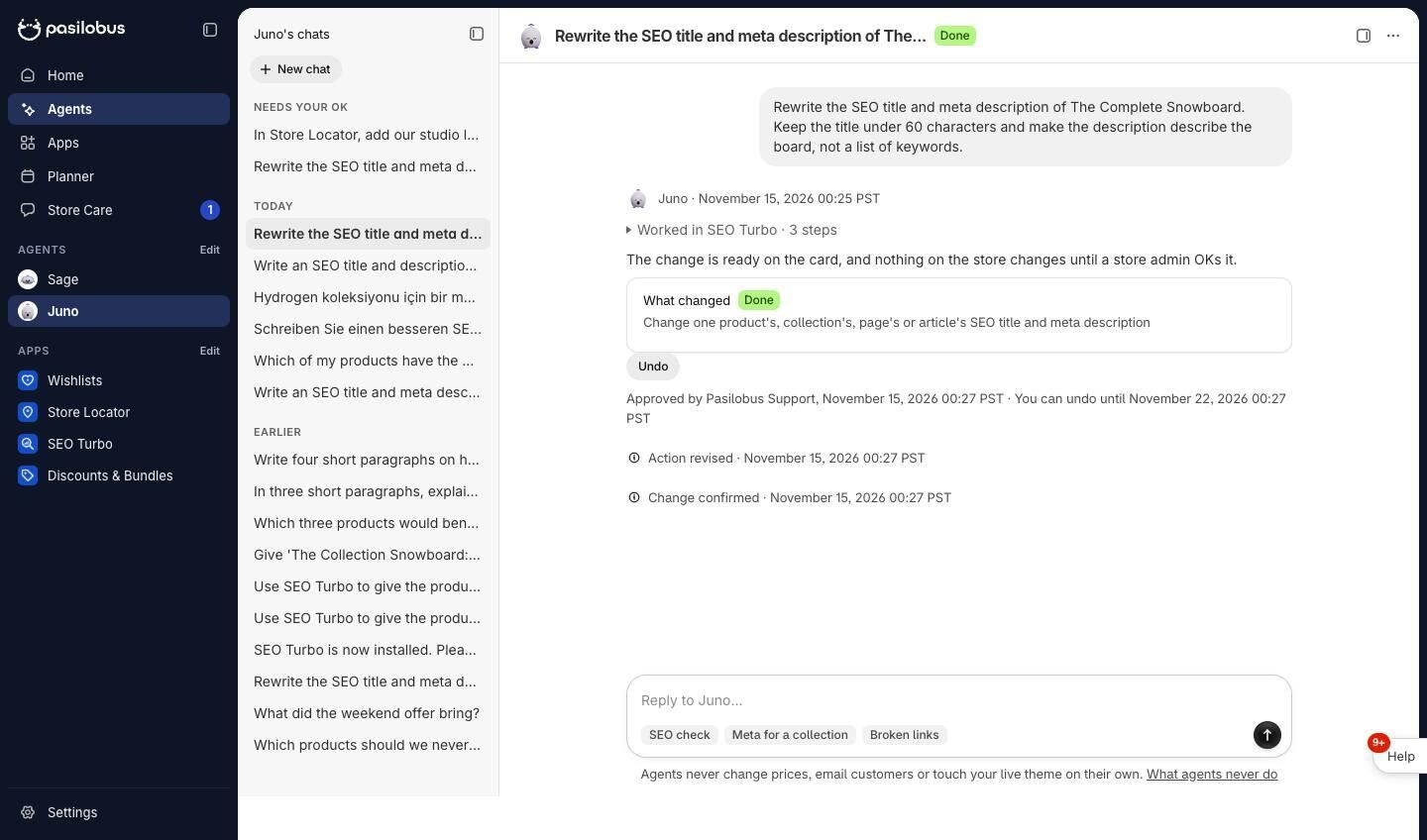
After Approve, the card becomes a short What changed, with Undo for 7 days.

The product page now carries the approved title and description. The box shows what search engines read.
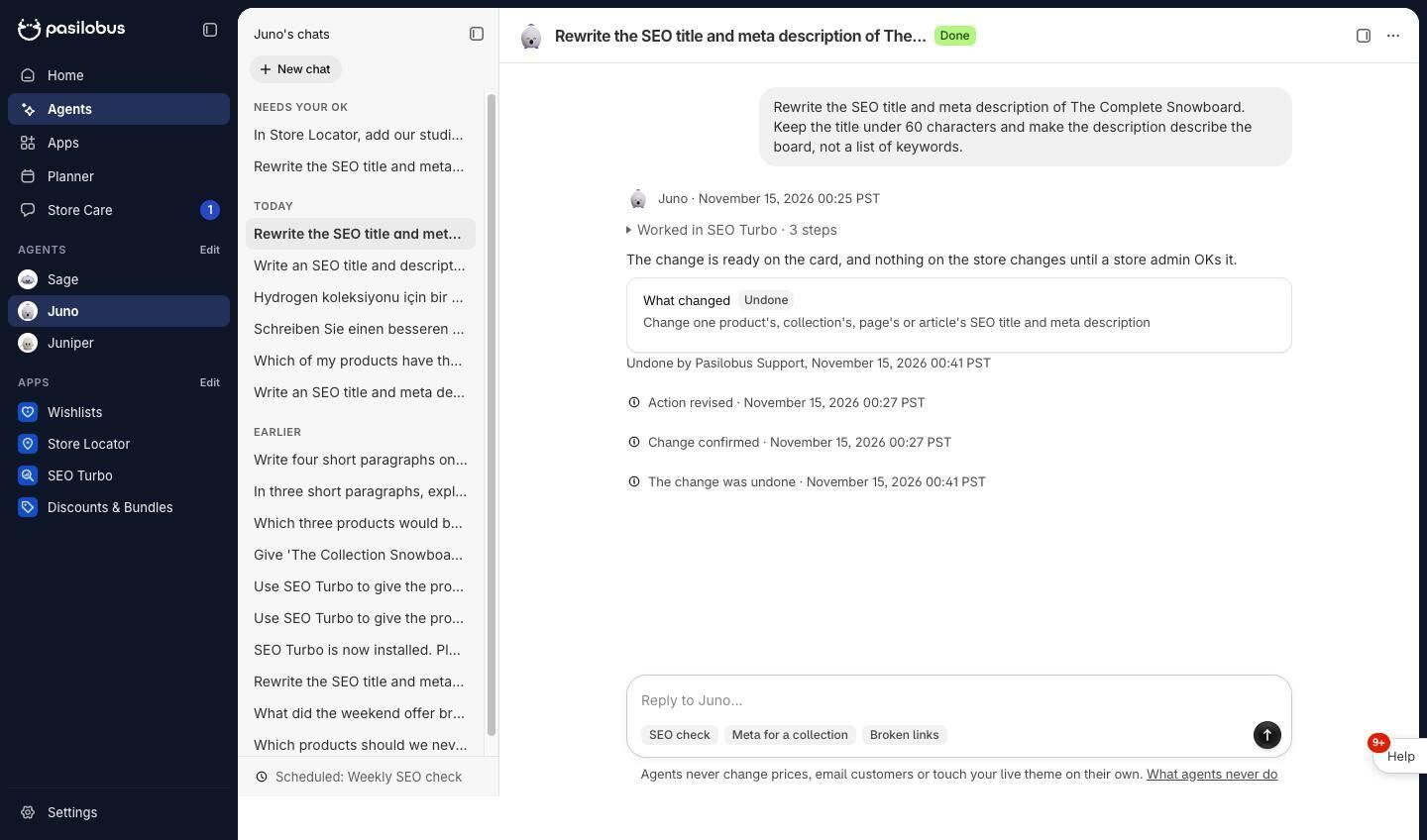
Undo puts the old title and description back, as long as nobody changed them since, and the card says Undone.
Sage prepares a discount code
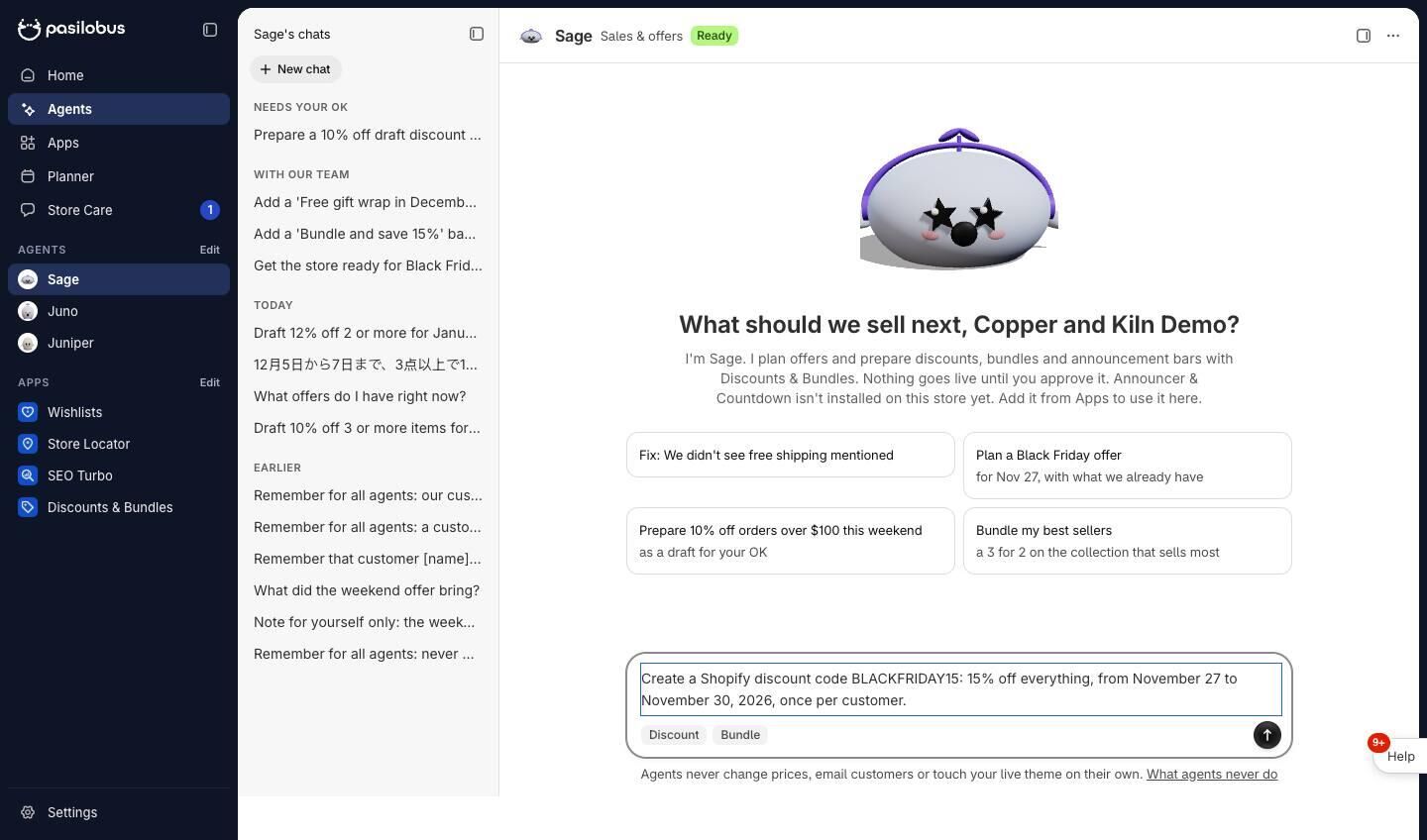
Sage, the sales agent, is asked for a Black Friday discount code.
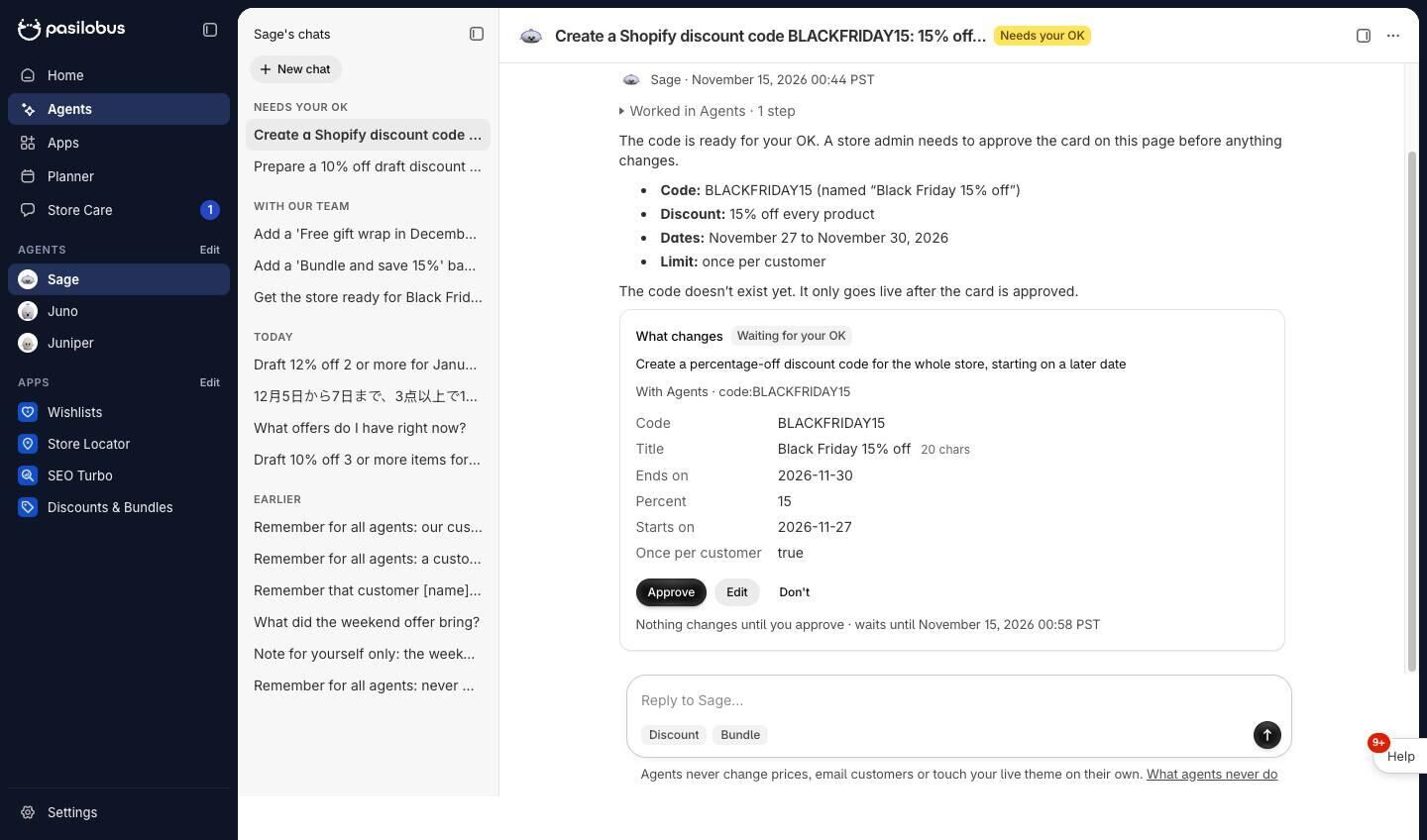
Sage prepares the code with the Agents app: the code, the percentage and the dates are on the card. It starts on a later date, so nothing is live when it's approved.
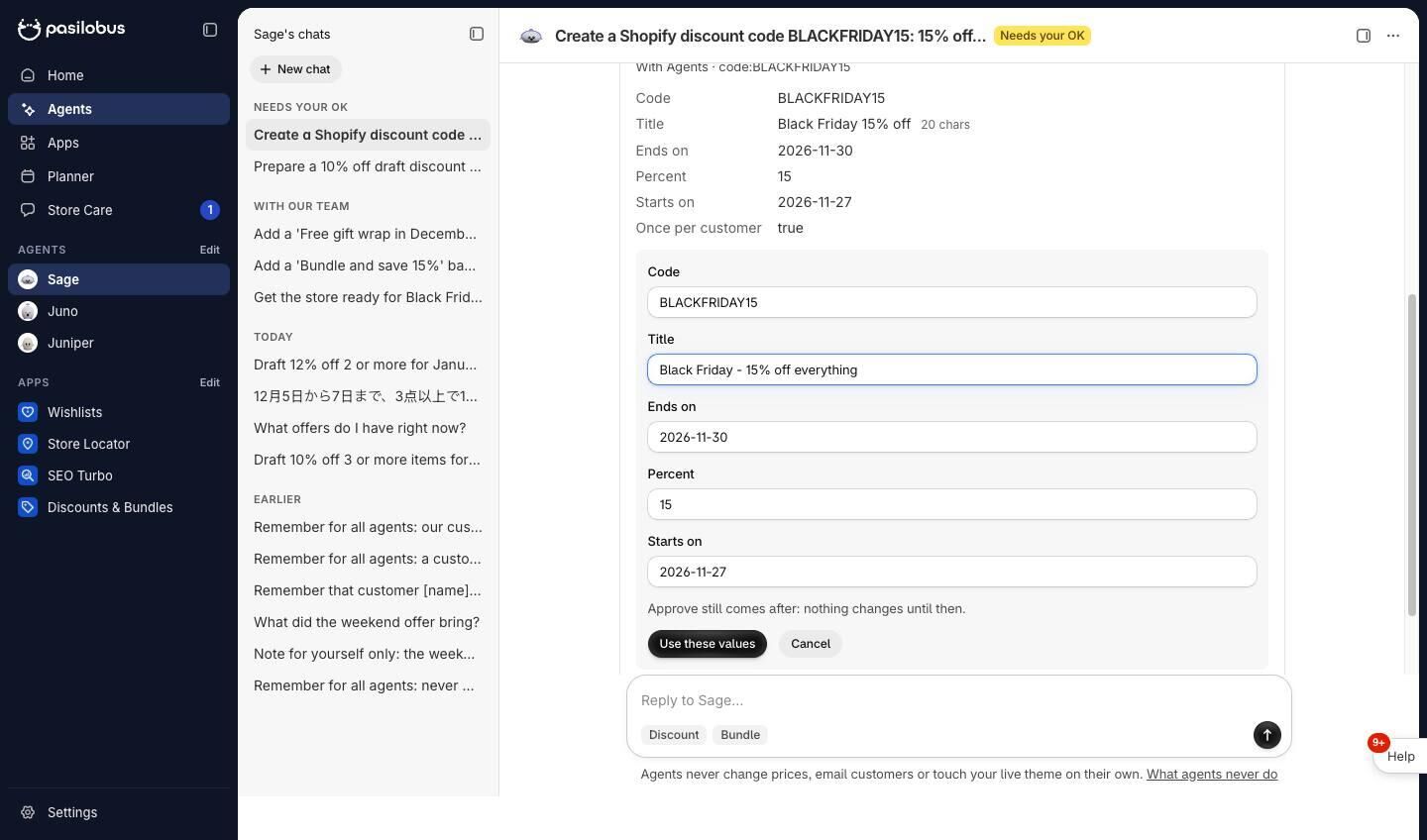
Edit renames it before approving. The code, percentage and dates can be changed the same way.
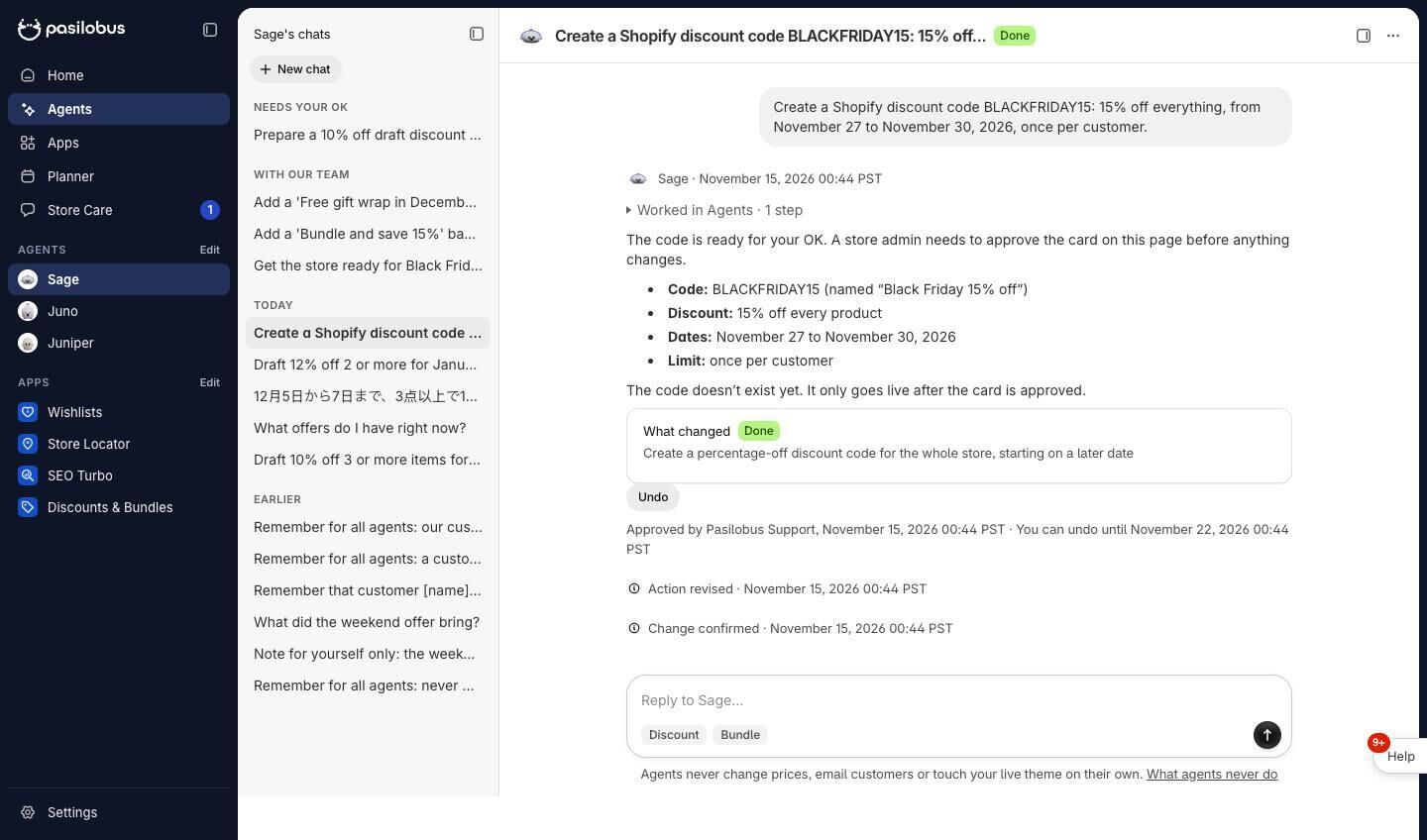
Once approved, the code exists in Shopify, scheduled for its dates.
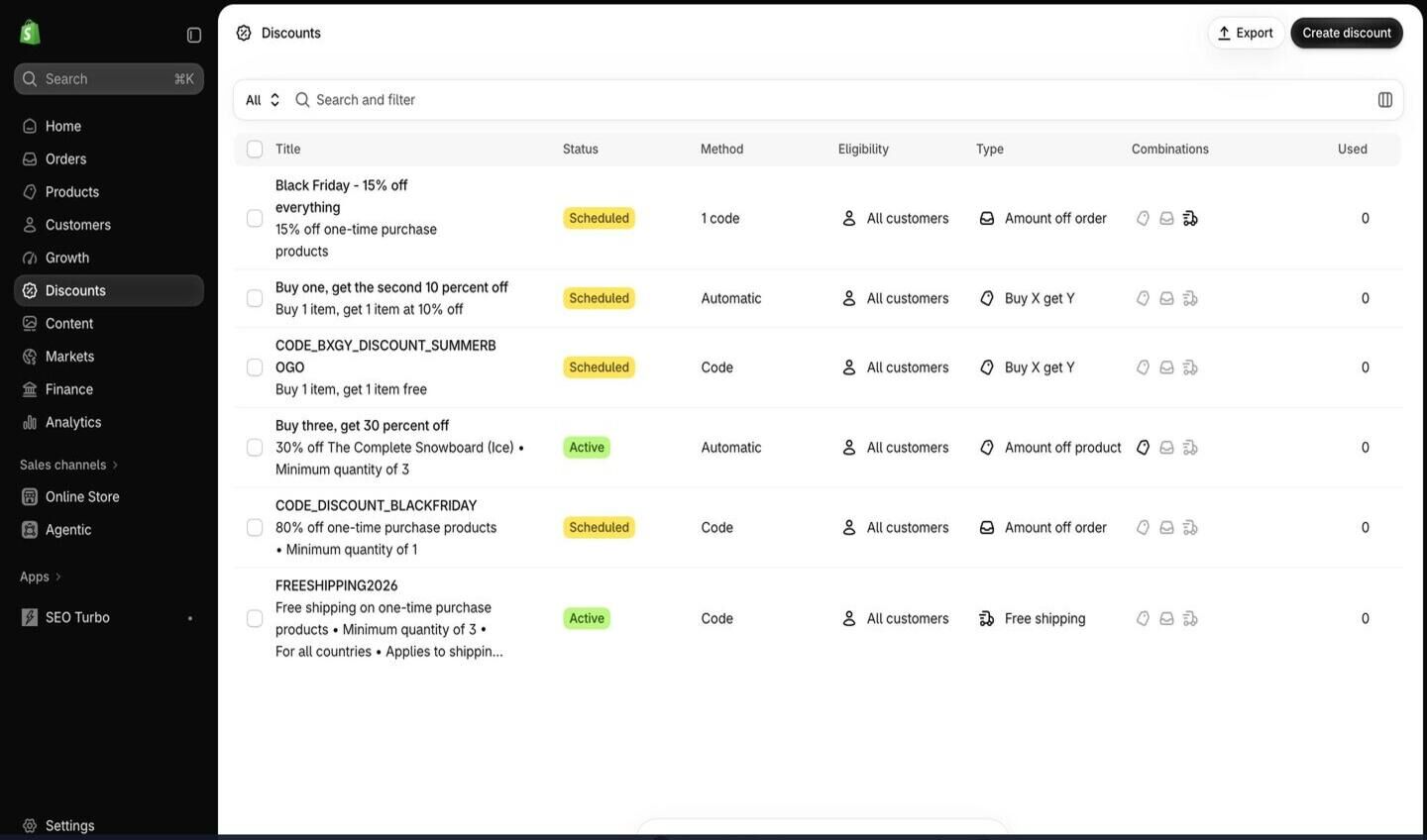
In the store's Shopify admin, under Discounts, it shows as scheduled, with the name edited on the card.
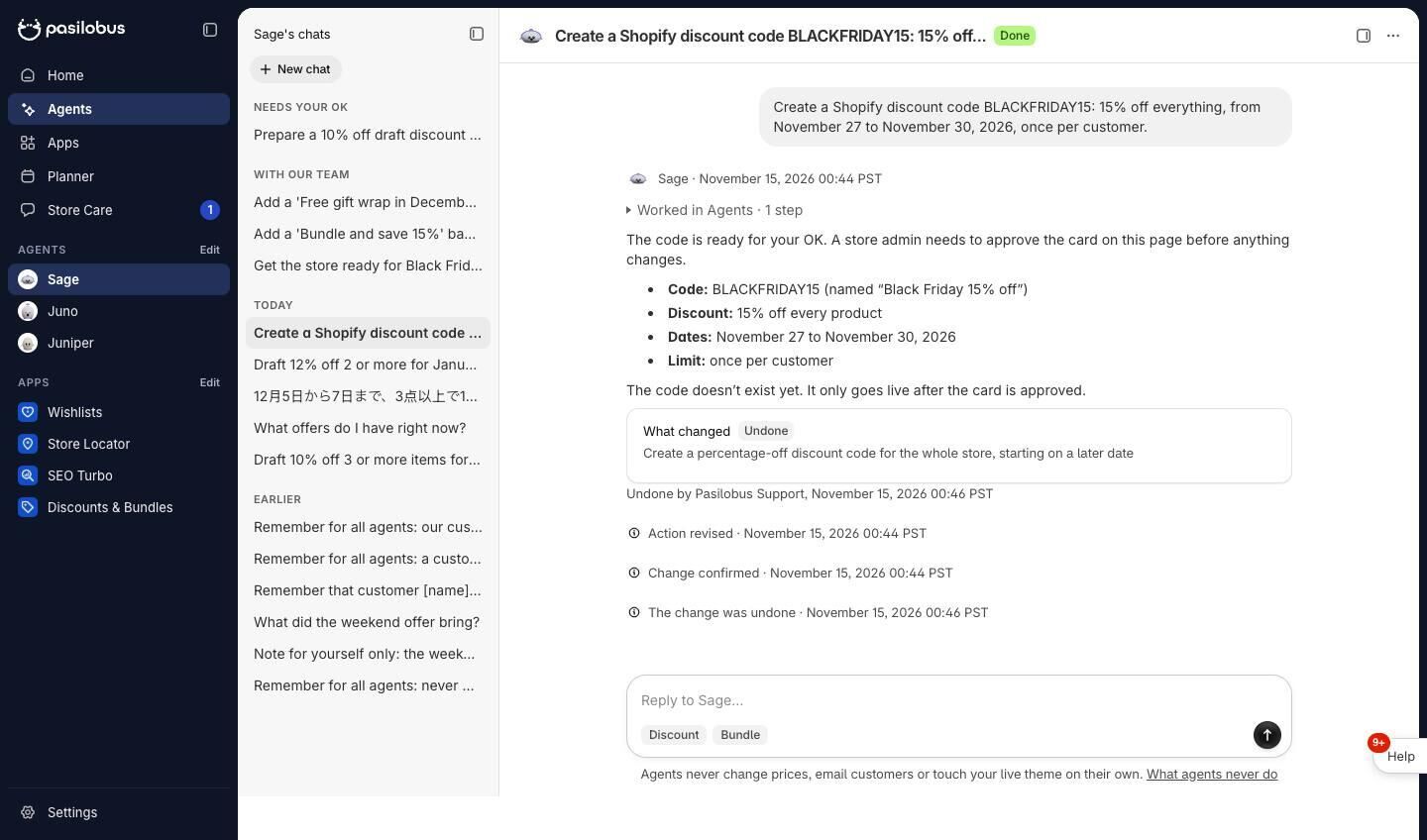
Undo deletes the code the agent made, only its own and only before it starts.
Pasilo, scheduled tasks and memory
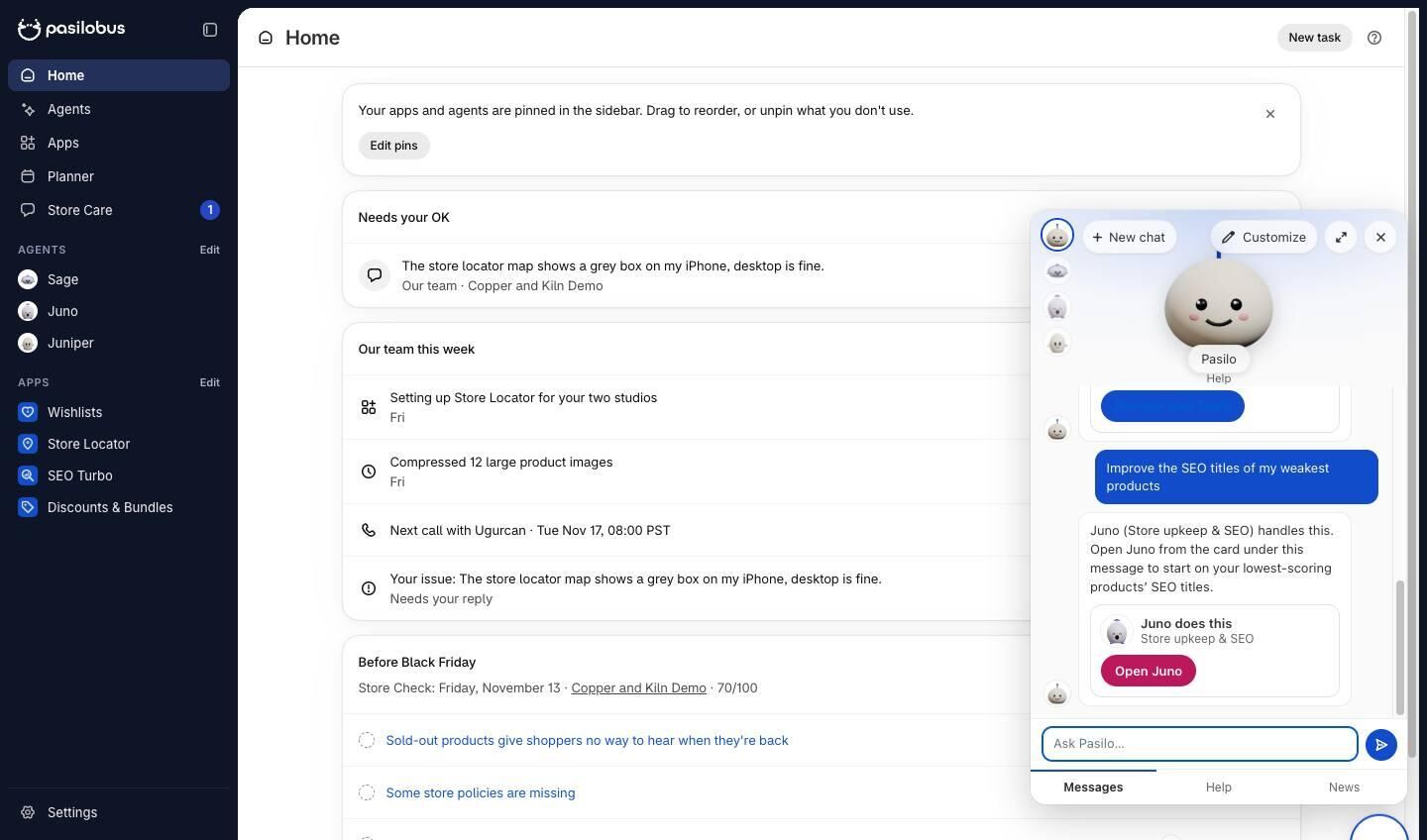
Asked to improve SEO titles, Pasilo (the help, which never changes the store) answers with a card: Juno does this, Open Juno.
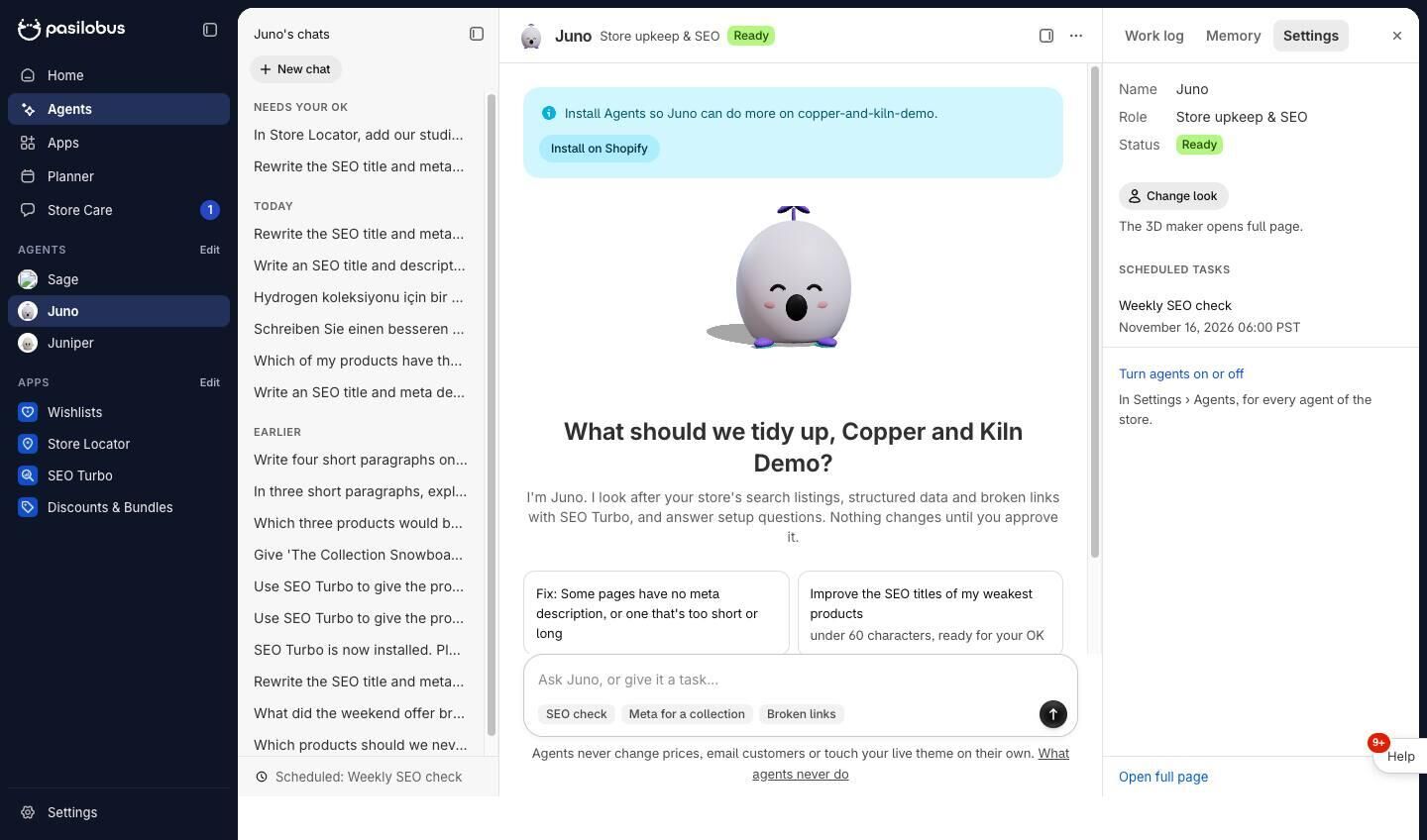
Juno's weekly SEO check (Mondays at 9:00) is listed in its panel with the next run. Any change it prepares still waits for an OK.
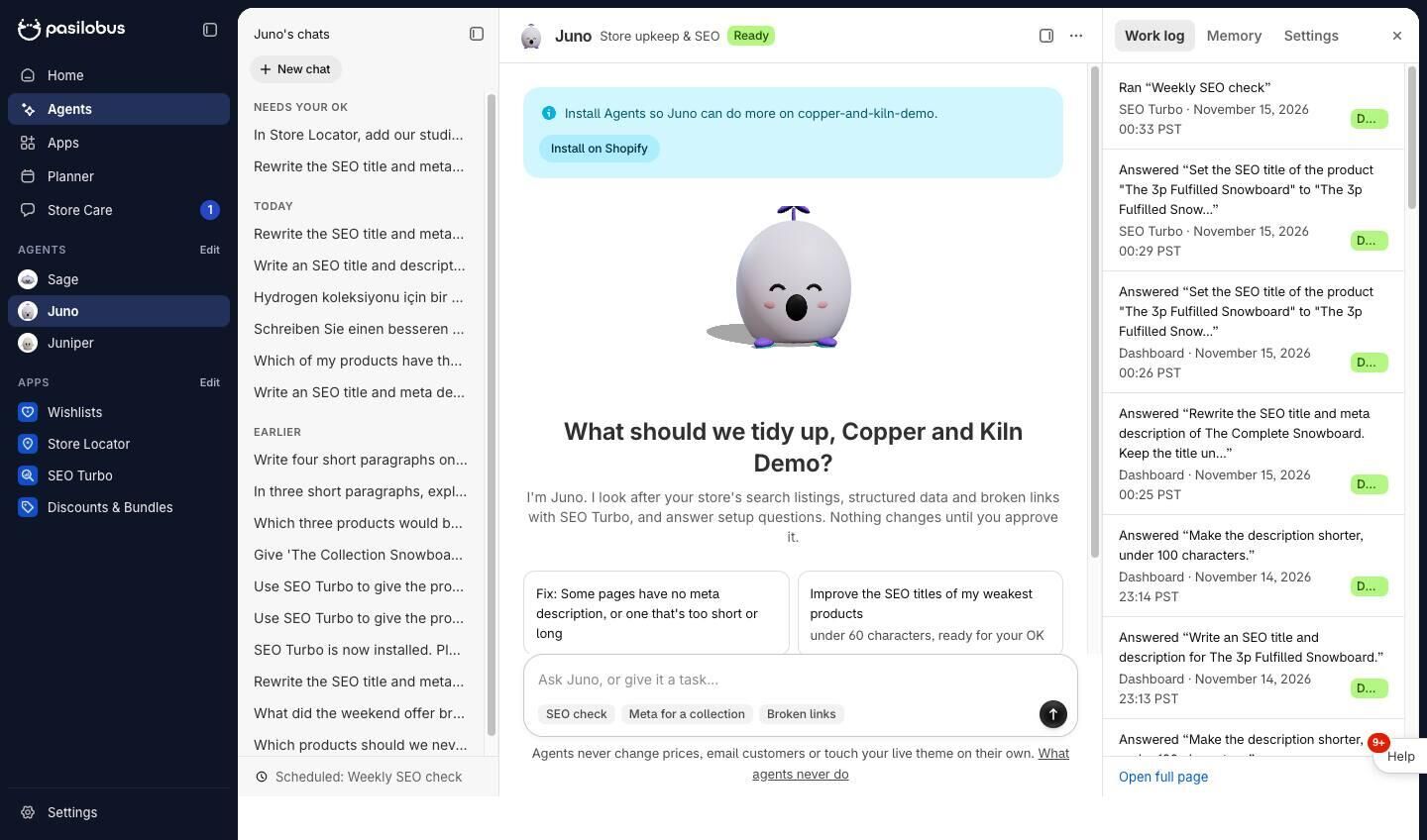
Its first run, in Juno's work log: the three weakest SEO titles, reported only, as the task asked.
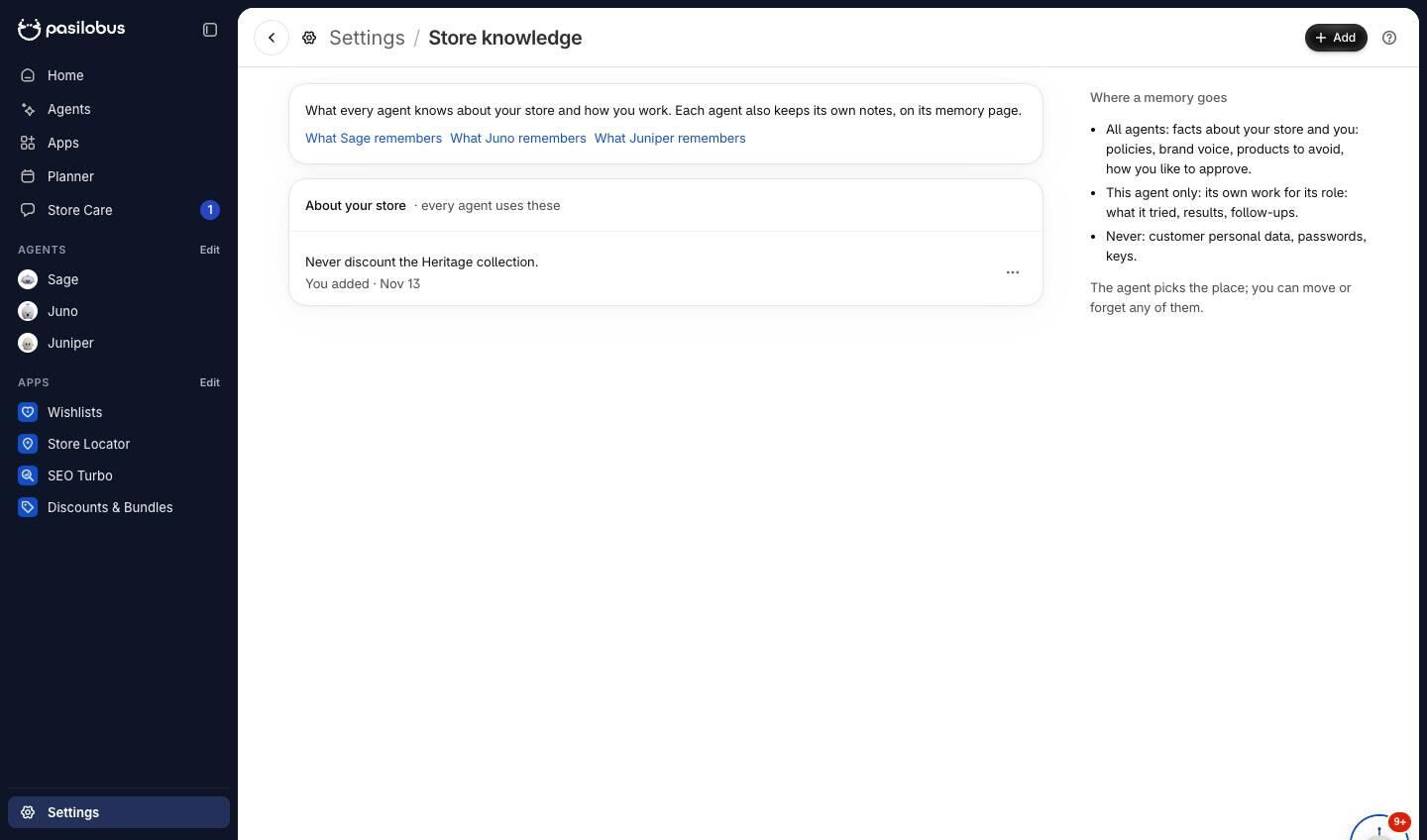
Store knowledge is what every agent remembers about the store. Copper still had an old rule: never discount the Heritage collection.
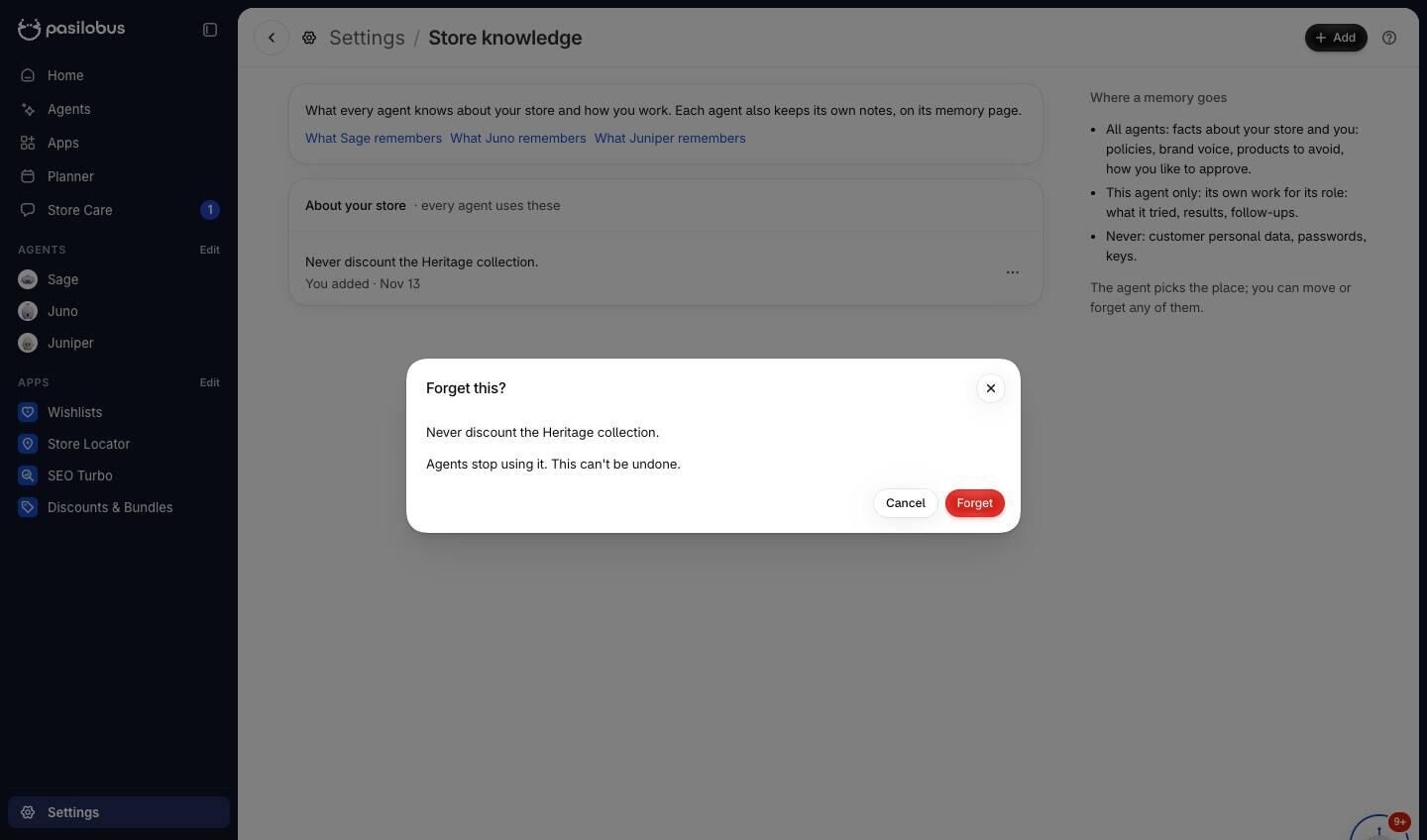
Forget, in the memory's menu, removes it for good, and agents stop applying the old rule.
See Agents for everything agents do, and How agents stay safe for the safeguards.